
To merge duplicate contacts in HubSpot, first confirm that the records belong to the same person, then write down the current values and company relationships you want to keep. Review those choices before using Merge, and check the resulting contact against them afterwards. HubSpot documents that records cannot be unmerged, so an unresolved identity question is a reason to stop.
You may be looking at a familiar name twice, with different phone numbers and different colleagues assigned. We start by deciding what the next person opening that contact needs to see. A smaller contact list can wait until those decisions are clear.
Why can matching contacts disagree?
A matching name leaves several questions open: whether the records represent the same person, which details are current, and whether some relationships belong to earlier work. A change of employer can explain a different address, but it needs confirmation. Treat the pair as a question to investigate before you choose the record to keep.
The identity link is uncertain. A shared inbox or company switchboard can serve different people. If your only explanation is that the names look alike, ask the responsible colleague to verify through an established contact route and leave the records separate in the meantime.
Useful values sit on different records. The current account owner may be on one card while the approved phone number sits on the other. Choosing the most recently edited record skips the question of who changed the value and why.
An old relationship still has a purpose. A previous employer may explain a quotation that remains relevant. Keeping that context and choosing the current employer are separate decisions; an old company name in the history does not have to be the company record colleagues use for current work.
According to HubSpot’s property-history guide, you can inspect a value’s changes, dates and sources. Use that trail to investigate a conflict, then agree the current value with the colleague who knows the relationship.
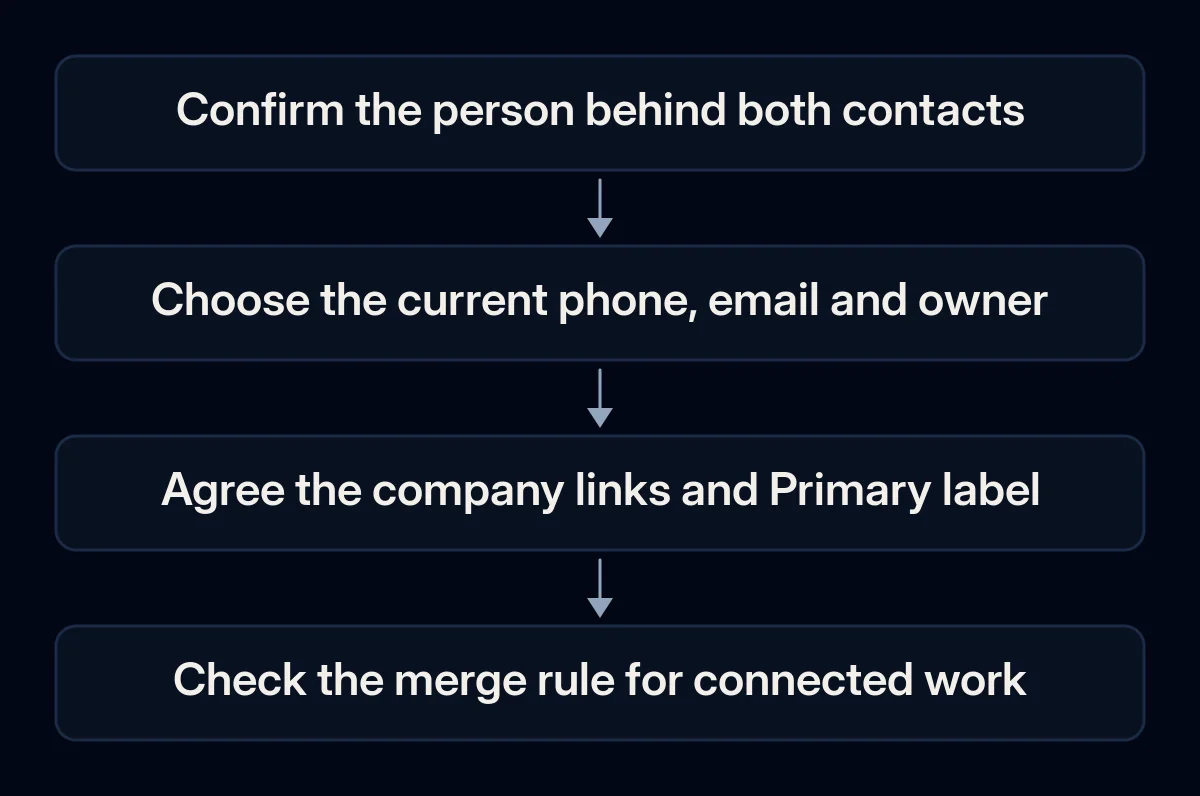
Review this fictional pair before choosing which record remains
In this invented example, record A represents the current working relationship and record B contains the preferred direct phone number. The person has confirmed the connection between the old and current addresses, and that the direct number is still correct. Those confirmations are assumptions of the exercise; no customer records or live HubSpot account were used.
We will call A the current-employer record and B the former-employer record. The table below records the intended result before any operation. Without the identity confirmation in the example, stop here and leave the pair separate.
| Item | Record A | Record B | Intended result |
|---|---|---|---|
| Confirmed current work address | Confirmed former work address | Use the current address for the working contact | |
| Phone | Former office number | Confirmed preferred direct number | Choose B’s direct number |
| Contact owner | Colleague handling the current enquiry | Former account owner | Keep A’s agreed owner |
| Company | Current employer, labelled Primary | Former employer, labelled Primary | Current employer is Primary; retain the relevant historical link |
| Deal relationship | Current enquiry | Earlier quotation | Inspect both distinct deals; no deal merge is proposed |
To merge duplicate contacts in this example, we would choose A as the record that should remain after the merge. That choice still leaves the phone conflict to resolve. HubSpot’s merge guide explains how to choose retained property values, including exceptions to its usual primary-value preference, so inspect the fields you need rather than assuming every choice follows A.
An association is a link to another record, such as a company or deal. The Primary label on a company association identifies a role within those links. HubSpot documents that the company labelled Primary on the record you keep takes priority during a merge; the other company link remains without that label. Check the actual label against the intended result.
Write down the intended linked company and its Primary role. Open that company record and check the role on the contact; the company name alone does not complete the check.
How to merge duplicate contacts after the review
Use the individual-record route only after you have confirmed the identity, field choices and company roles, and you know what the merge means for connected work. Have the responsible administrator explain any active automation or external reference you rely on. If an essential dependency is unclear, leave the pair pending until the responsible colleague can explain it.
- Record the agreed starting state. Keep the original record references and your intended values in the business’s approved storage. If you export, inspect what the file actually contains. HubSpot’s export guide separates record properties and associations from activity exports; a file is evidence for comparison, not a complete recovery plan.
- Check permission and account conditions. The merge guide requires Merge records or Super Admin permission. Ask someone already authorised to act if you lack it. HubSpot says the contact identifier (ID) and workflow (automation) behaviour can depend on whether the Primary ID Preservation public beta is active in the account. Before merging, ask the administrator to document which behaviour applies here and for integrations that use that contact ID.
- Open contact A, the record you intend to keep. HubSpot’s documented manual route is CRM > Contacts, opening A, then Actions > Merge and selecting B. Some accounts show More before CRM. This is the individual-record route, separate from the duplicates manager.
- Compare the actual retained values. Use Set properties to review to expose relevant properties, then Apply. Inspect the selected current email, phone and owner against your decision. If a required value or association needs another authorised edit, clarify that before proceeding; do not assume the dialog has resolved it.
- Confirm only the reviewed pair. Check the record references again, then use Merge when the written result and the visible choices agree. Keep the written decision available for the check afterwards. A doubtful pair can remain separate.
What should you check on the combined contact?
Open the resulting contact and compare it with the same written decision, starting with the fields someone will use for the next conversation. Check each relevant relationship separately and record the resulting identifier. The purpose is to verify the intended working record; inspecting selected items cannot establish that every piece of history or every integration is correct.
For the fictional pair, check the current email, the phone you will use and the assigned owner. Open the company links and confirm that the current employer carries Primary. Inspect the distinct enquiry and quotation, plus relevant activities you recognise from their histories, without treating them as duplicate deals.
Ask the responsible colleague to check the next planned follow-up and each contact reference used by an important integration or report. If something disagrees, pause work that depends on that value and investigate with the administrator. An export or a visible history trail does not provide an unmerge operation.
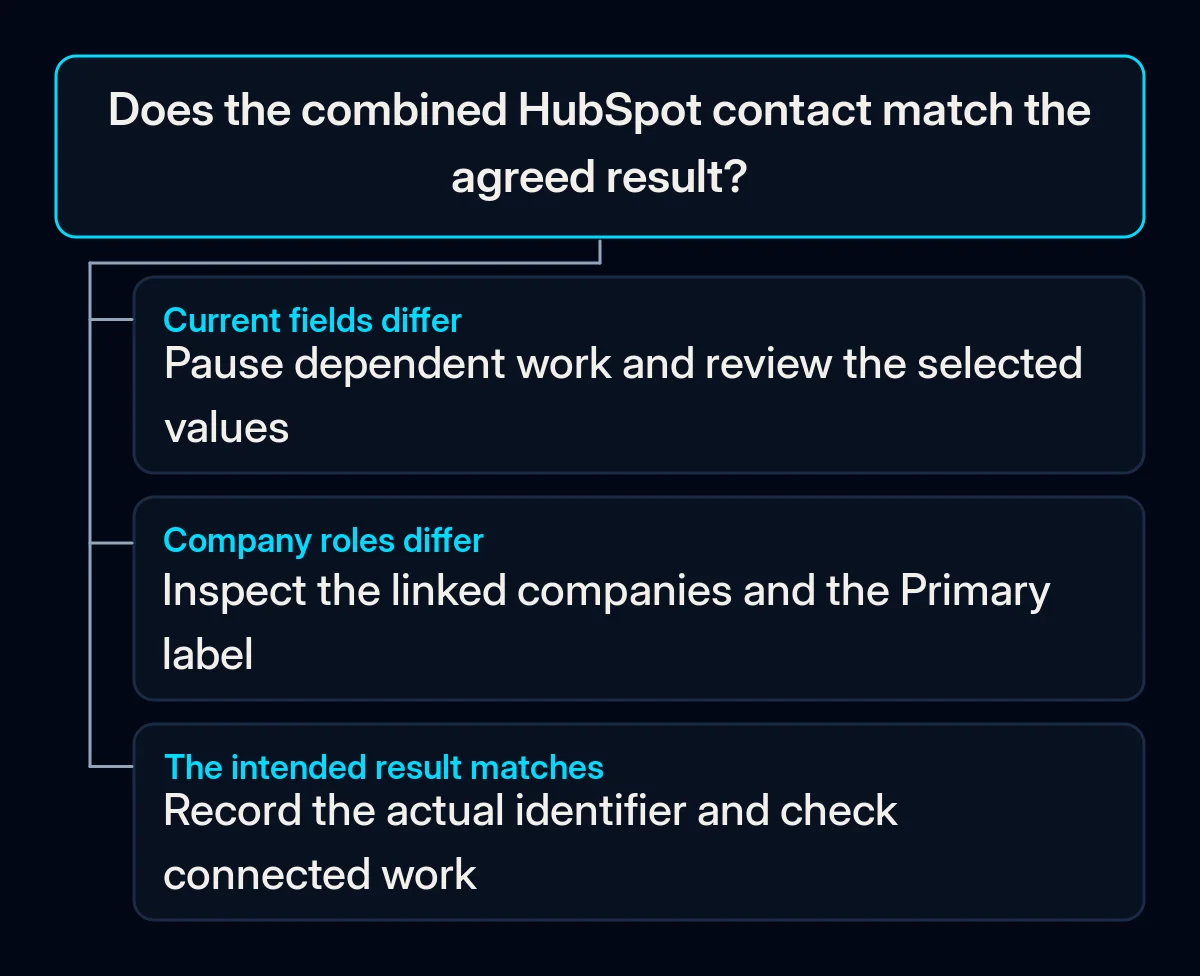
Once the result matches the agreed decision, trace how this pair entered the CRM. An import, enquiry form or integration may need a clearer rule for when it creates a new contact and when it updates an existing one. Our CRM data cleanup and integration checks start with that incoming route and the field decisions it needs; the broader CRM data quality checks cover issues beyond this individual pair.
What to measure before the next cleanup
Record the checks you completed and the questions still open for comparison when you review the next suspected pair. Keep a separate note of where fresh candidates came from. This gives the person responsible for the process something concrete to investigate, without treating a fall in the contact count as proof of a correct result.
- Unresolved field or relationship decisions: record them during the review and check whether you resolved each before using the contact.
- Failed result checks: log the wrong value, company label or link, then check your correction.
- Fresh suspected pairs by incoming route: compare new candidates after changes to imports, forms or integrations; investigate the route when they recur.
If the contact feeds advertising reports, ask how contact, enquiry and sale identifiers relate before trusting a changed total. In paid advertising measurement through the CRM, we check those relationships explicitly. Combining contacts alone is not evidence that conversion events or acquisition history were reconciled.
Where we come in
We begin with the suspected pair, write down the values the team needs and check which forms, imports or integrations use that contact. Then we trace the route that created the duplicate. If you need help reviewing that route, describe it in a short brief; do not send contact exports or credentials.