Offline conversion tracking tells Google Ads which of your enquiries became qualified leads or sales, so the system that sets your bids stops treating every sent form as a success. It needs three things: the ad click ID or the contact details kept with each lead, a status in your CRM or even a spreadsheet, and a regular upload back to Google. For users in the European Economic Area, the UK and Switzerland, each upload should also carry their consent status.
Google Ads reports a healthy number of conversions, while your sales team says many of those enquiries were students, suppliers or people outside your area. The campaign keeps finding more of the same, because the only result it can see is a form that was sent. Sorting out enquiries that never turn into sales starts with a clear definition of a good lead. The next step is handing that verdict back to the ad platform.
Why does Google Ads keep bringing leads that never buy?
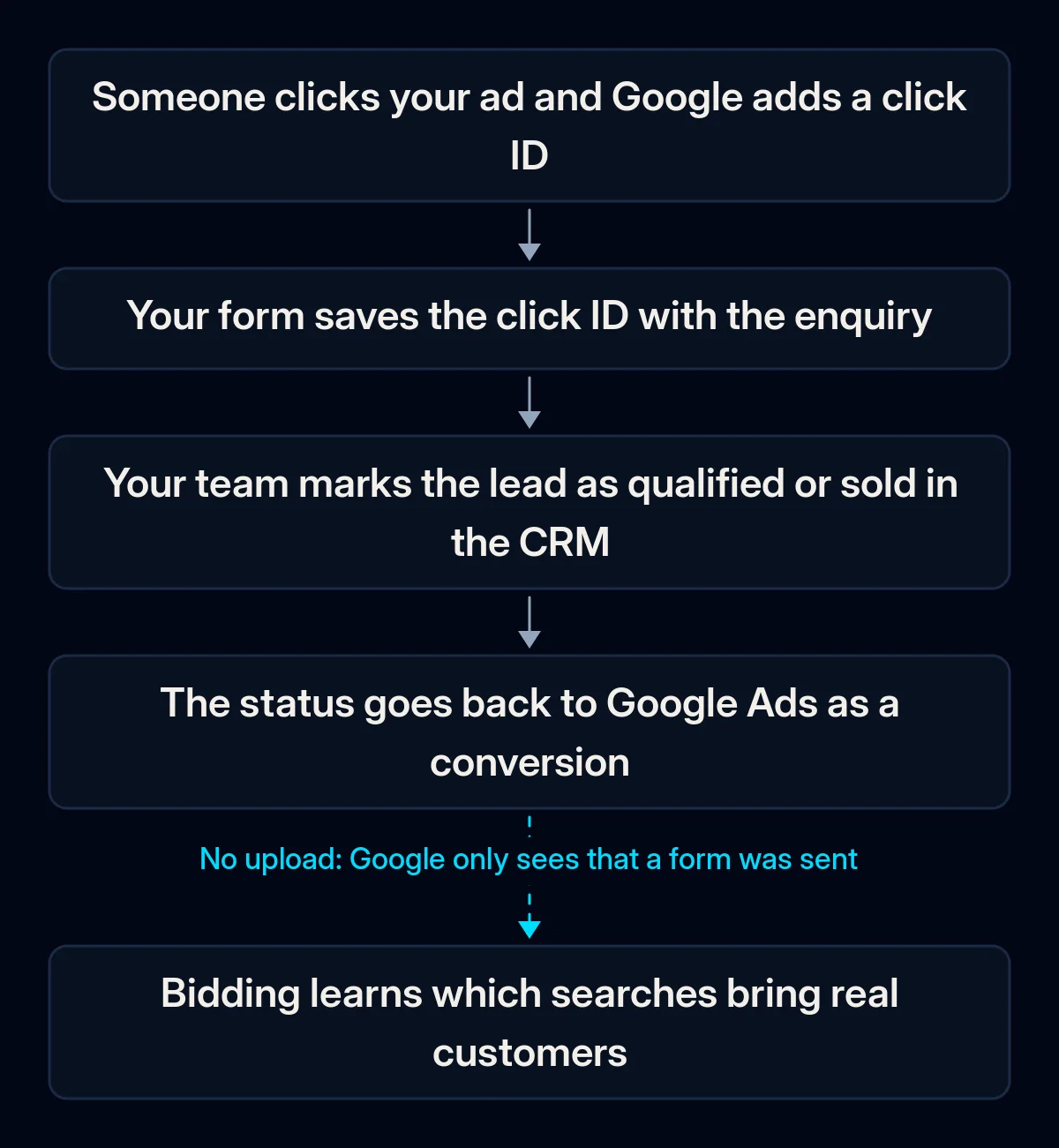
Google Ads optimises for whatever you tell it counts as a conversion, the action recorded after someone clicks your ad. When that action is a sent form, automated bidding, where Google sets the bid for each auction itself, learns to find people who send forms, whether or not they buy. Without offline conversion tracking, five gaps can keep the real result away from the platform. You can trace each one in your own accounts.
The form is the finish line. If the primary conversion action, the one used for bidding, is a form submission, every form counts the same. Google’s guide to setting up offline conversions with the click ID says it is critical to set primary actions (biddable) and secondary actions (observation only) correctly. The sign: the only primary action in your account is a form, a call or a page view.
The click ID is lost on the way. Google gives every ad click that reaches your site a unique Google Click ID, or GCLID, and auto-tagging adds it to the address of the page. Google says auto-tagging is required to track offline conversions, and that the GCLID has to survive any redirect to the final page. A form without a hidden field for it, one the visitor never sees, drops the ID before the lead reaches the CRM, and that click can no longer be matched by its ID.
The CRM has no status that means a good lead. Without a written definition and a stage for it, there is nothing to send back. Leads stay new for weeks, or are closed without a reason, and the sales team’s judgement stays in their heads.
Uploads are rare or late. Google’s FAQ on offline imports asks for uploads at least daily, or on a consistent regular schedule. Its import guidelines add a time limit: conversions uploaded more than 90 days after the last click are not imported. A file exported once a quarter when there is time misses part of the sales it was meant to report.
Consent is missing from the upload. Google’s EU user consent policy covers users in the European Economic Area, the UK and Switzerland and says you must obtain their legally valid consent, including for collecting, sharing and using their personal data to personalise ads. The consent fields in each upload, which say whether the person agreed to their data being used for advertising, are how you pass that answer on. Google’s help highly recommends filling them, and conversions without this information may not be attributed. The sign: your upload file or connector has no consent columns at all.
These gaps sit along one loop, from the ad click to the bidding, and a break at any point can leave Google guessing.
How do you check whether your sales reach Google Ads?
You can check the whole loop yourself in your Google Ads account and your CRM, without paid tools or a developer. Go in this order, because each check depends on the one before: there is no point fixing uploads while the click ID never reaches the CRM. Write down what you find, then fix the first gap before you move to the next.
- Goals. In Google Ads, open the conversion summary under Goals. Note which actions are primary and whether any imported or offline action exists. If one exists, open its diagnostics: a status of “No recent data” means no events have arrived in the last 28 days, or that something else is wrong with the imported data.
- Auto-tagging. In the account settings, check that auto-tagging is switched on.
- The landing page. Open your landing page with a test parameter such as ?test=1 added to the end of the address and follow it through any redirect. If the parameter disappears, a click ID may disappear too.
- The CRM record. Take the latest enquiry that came from an ad and open it in the CRM. Is there a field holding the click ID, and is it filled?
- Statuses. Look at last month’s leads. Is there a stage for a qualified lead and one for a sale, with dates, and does the team use them?
- Consent. Check what your form records about consent for advertising, and whether that answer is stored with the lead.
How to set up offline conversion tracking, step by step
Build offline conversion tracking from the sales side outwards. First agree what counts, then keep the click ID and consent with every lead, then choose how the status travels to Google, and only at the end change what the campaigns bid for. The early steps need no new tools, and they already make your own reporting clearer.
-
Define a qualified lead and pick one stage for bidding. Google says choosing “Qualified lead” or “Converted lead” as the goal is a best practice, and its FAQ says you would usually bid to one stage of the lead funnel. Its lead-quality guidance gives two markers for that stage: at least 15 conversions in the last 30 days at account level, and ideally an event within 7 days of the ad interaction. If deals close rarely and after long talks, the qualified lead is the stage more likely to meet both; send sale conversions too, as a secondary action for reporting. Agreeing this definition is part of mapping the target process in our CRM projects.
-
Keep the click ID with every lead. Add a hidden field to each form that reads the GCLID from the page address and saves it in its own CRM field, next to the time of the enquiry. It is the same idea as recording which channel each enquiry came from, taken one step further, down to the individual ad click. Then send a real enquiry through an ad path and check the field is filled.
-
Store consent with the lead. Record in the form whether the person agreed to their data being used for advertising, and keep that answer on the CRM record. You will need it for the consent field when you upload. Whether you have a legal basis to share lead data with Google is a question for your data protection adviser.
-
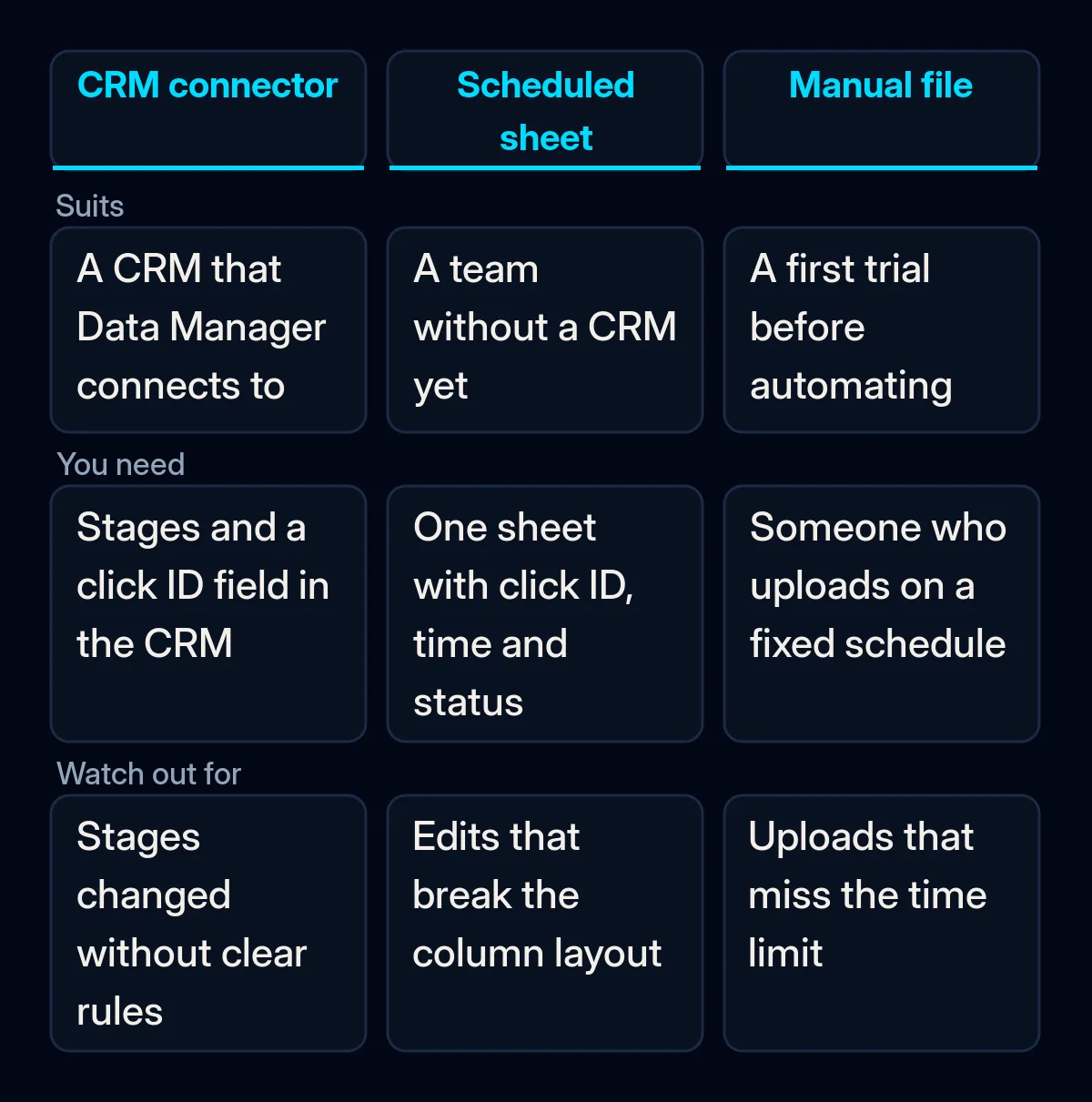
Choose the upload path that fits your size. Google recommends Data Manager, its tool for bringing your own data into Google Ads, and lists direct connections for CRMs such as HubSpot, Salesforce and Zoho CRM, as well as Google Sheets. You do not need a CRM: a Google spreadsheet also works, according to the offline imports FAQ. Google now calls the older offline conversion import a legacy feature. Its upgraded version, enhanced conversions for leads, adds contact details such as an email address, hashed (turned into a code) before they leave your system, to the click ID.
Hashing hides the address in transit, but hashed contact details can still be matched to a person, so send them only for leads where you have a legal basis, and say in your privacy notice that lead data is shared with Google for ad measurement.
If a developer built your uploads through the Google Ads API, ask whether they have moved the integration. Since 15 June 2026, Google has been moving these uploads to the Data Manager API: in the Google Ads API they now fail for developer tokens with no earlier upload history, and Google points everyone to the Data Manager API instead.
-
Start as a secondary action and upload daily. Create the imported action as secondary, so it is recorded but does not drive bidding yet, and upload at least daily. Give each lead an order ID, a unique number from your CRM, which Google says helps control duplicates. Expect figures to shift backwards: imported conversions appear on the date of the original click, and Google’s troubleshooting page says processing typically takes less than 12 hours.
-
Switch bidding only after steady uploads. The same FAQ suggests uploading consistently every day for one to two conversion cycles, the usual time from an ad click to a qualified lead, before the action goes into the Conversions column, the data used for bidding. Then make the qualified lead the primary action and the form secondary, and give the campaigns time to adjust. The bidding side is where our Google Ads management takes over from the CRM work.
What should you measure once sales flow back?
Once offline conversion tracking is running, measure whether the loop is complete before you judge whether bidding improved. Four weekly checks cover both. If the first two are weak, fix the pipes before you read anything into campaign results, because the platform is still learning from partial data.
- Diagnostics status. The offline data diagnostics in Google Ads use the statuses Excellent, Good, Needs attention and No recent data. Read the reason behind any warning.
- Ad leads with a click ID. Count how many of last week’s enquiries from ads carry a filled click ID field in the CRM.
- Qualified leads in both places. The number of qualified leads in your CRM next to the number Google Ads shows for the same click dates. A large gap may mean matches are failing.
- Cost per qualified lead. Spend divided by qualified leads, by campaign. Track this figure after switching bidding to qualified leads, and compare it month on month.
Where we come in
Our order of work follows the same loop. The definition of a qualified lead and the CRM stage come first, then the click ID and consent in the forms, then the upload, and bidding changes come last. In the CRMs we set up, the source of each enquiry is recorded automatically. If your loop breaks somewhere you cannot see, start with the first check in this article, the conversion summary under Goals.