Conversion tracking not working? Follow a website enquiry from its landing page to a successful submission, then inspect the named action with Google’s Tag Assistant. Keep delivery, tag verification and advertising attribution - credit given to an ad interaction - separate. This procedure is for an existing action measured by the website’s Google Ads tag. Imported Analytics events, calls and offline sales need their own procedures.
An enquiry can arrive while an advertising chart stays empty. A tag can also respond to an action that never delivers an enquiry. We start by writing down what the action is supposed to mean, so the check has a clear result before anyone changes the setup.
Conversion tracking not working: separate the evidence
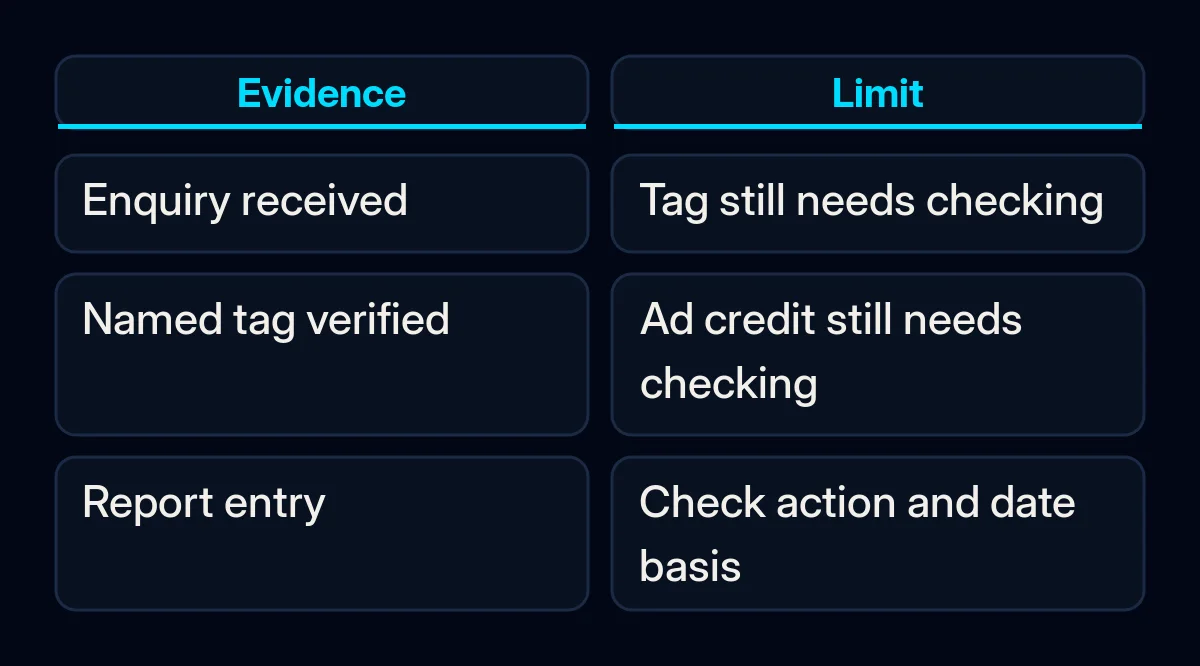
A conversion action is the activity you have chosen to measure, such as a completed enquiry. A tag is measurement code, and Tag Assistant is Google’s tool for checking it. Google’s action-specific troubleshooting guidance says a verified action can show “No recent conversions”. Successful verification therefore leaves advertising attribution as a separate question.
| Observation | What remains to check |
|---|---|
| The form shows a success message | Whether the intended enquiry actually reached its destination |
| The named action is verified | Whether the test represented a delivered enquiry under the recorded conditions |
| An Ads report shows conversions | Which action, reporting conditions and advertising interactions those entries represent |
Record the form route before testing
Choose a particular form and write its intended outcome in plain language. “A quotation request reaches the agreed receiving system” is a more useful test definition than “the button works”. Identify the existing action and its source before continuing. If it is imported from Analytics, give that information to its maintainer and use the appropriate import checks.
Make a blank record with these fields:
- Landing page, language, form and expected receiving destination.
- Action name, source and current visible status.
- Expected successful submission and expected rejected or abandoned submission.
- Browser, device, test time and time zone, and the consent choice.
- Actual receipt, named-action observation, unresolved question and responsible person.
For a manual Tag Manager installation, Google’s setup guidance identifies the Conversion ID and Conversion Label used by the tag. Ask the maintainer to compare the existing values if needed. Automatically created actions may lack a separate label; that alone is not a reason to create a replacement action.
Follow a successful enquiry through Tag Assistant
Agree a safe test with the people maintaining the form and receiving enquiries. Use approved test details and control any resulting notifications, bookings or follow-up messages. If that cannot be done safely, prepare the record for the maintainer instead. Keep real customer details, access information and unrestricted debug screenshots out of a shared worksheet.
- Open Goals in Google Ads, then the conversions Summary. Find the intended action and record the exact status and its details. If the row offers Troubleshoot, continue into Tag Assistant. If that route is unavailable, ask the account maintainer to identify the appropriate diagnostic.
- Connect from the landing page and follow the normal route to the form. Google’s instructions recommend starting from a landing or home page rather than opening the conversion page directly. Do not click a live ad to manufacture a test visit.
- Retain the site’s approved consent behaviour. Google’s consent-debugging guidance distinguishes defaults, the visitor’s choice and the behaviour of individual tags. Record the actual state; if nobody can explain the expected behaviour, stop and involve the responsible implementer.
- Submit the approved test and check actual receipt independently of the screen’s confirmation. Record what Tag Assistant shows for the intended action, including a missing or unexpected result.
- Use Finish, then Close Tag Assistant to end the guided session. Save its result beside the delivery observation. Follow any diagnostic error rather than repeatedly submitting forms.
Google’s EU user consent policy covers relevant products used for people in the EEA, UK and Switzerland. Follow any disclosure and consent requirements that apply during testing. A technical pass does not establish legal compliance.
Check a form that does not complete
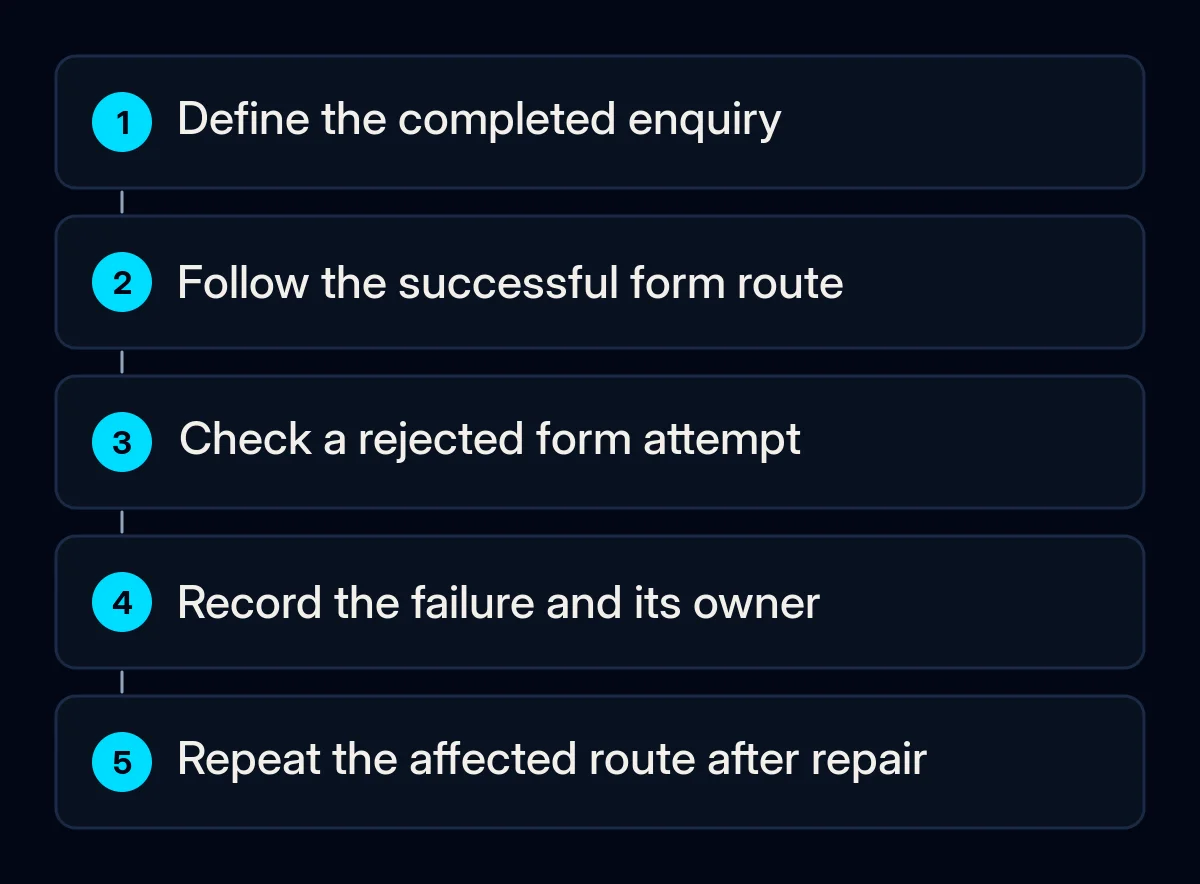
For an action defined as a completed enquiry, compare the successful path with an approved attempt that leaves a required field invalid or abandons the form. Write the expected outcome first: no completed enquiry and no completed-enquiry action. Another action, such as a contact-button click, may legitimately respond; check the name before diagnosing a fault.
Google’s form-trigger documentation explains that attempted submissions can trigger when validation checking is disabled. A trigger is the condition deciding when a tag runs. This makes the rejected-form check useful, but switching a checkbox is not a universal repair or proof of delivery. Google’s custom-event guidance also covers forms with altered submission behaviour; the implementer needs to identify their actual success signal.
Give the first evidenced failure to its owner
Choose the next action from the recorded failure, leaving untested layers marked unknown. This keeps a form repair separate from measurement work and avoids changing campaigns to clear a warning. Keep the earlier evidence so a colleague can repeat the same route and see what an approved change actually affected.
- No enquiry arrives: give the form maintainer the route, expected destination and observed result. In our website development work, form delivery and analytics events are separate acceptance checks.
- The enquiry arrives, but the intended action is missing or wrong: hand the record to the tag maintainer. For paid advertising measurement, identify the existing action before adding code or changing settings.
- The destination or owner is unclear: agree where the test should arrive and who checks it. Mapping that receiving step belongs to CRM and automation work; buying another tool can wait until the missing responsibility is clear.
- A repair is approved: repeat the successful and rejected paths affected by it. Google Tag Manager’s Preview can exercise a draft, so record which version was checked and retest the intended public configuration after release.
Keep reporting as a separate check
A direct diagnostic does not establish that Google Ads will attribute a conversion to an advertising interaction. When receipt and the named action pass their checks, save the report’s selected action, column, date range and account time zone. Google’s guidance distinguishes columns dated by the ad interaction from columns dated by the conversion. Use a consistent basis before investigating a discrepancy.
Reports also take time to process. Use Google’s data-freshness guidance that applies and note when the account maintainer will recheck, without promising a fixed clearing time. If this started after an update to a WordPress site, use our WordPress update checks to keep the form test in the wider release review.
What to record after a repair
Record the form’s actual receipt, the named action’s diagnostic result, the rejected-path result and any unresolved reporting question. Keep the earlier result beside the repeat check. A pass describes the route, version and conditions observed; other languages, forms or consent choices need appropriate checks of their own before you extend that conclusion.
Where we come in
We connect the form check, measurement evidence and handover to the people who maintain them. Implementation help is appropriate when the record identifies a failure you cannot safely repair with your existing access. Start by filling the card for the enquiry you need to understand and naming the person who will check its first unresolved step.