You have taken over a Google Ads account that someone else built. Maybe a former employee set it up, maybe a freelancer, maybe the agency you just left. Money leaves every month, the dashboard shows conversions, and nobody can tell you what exactly is being counted or why the campaigns look the way they do. What you need is a Google Ads account audit checklist you can run yourself before you decide anything.
The usual reactions are to delete everything and start fresh, or to leave it untouched because “it works”. Both are guesses. An account set up by someone else goes wrong in a small number of predictable places, and one evening of checks in the right order shows which of them apply to yours.
Why an inherited Google Ads account drifts
Access sits with the wrong people. Accounts are often created under a former employee’s personal email, or live inside an agency’s manager account with their card on billing. Nothing looks broken until you need to change something and cannot. The sign: in Access and security you find users nobody recognises, and your own company email is not an admin.
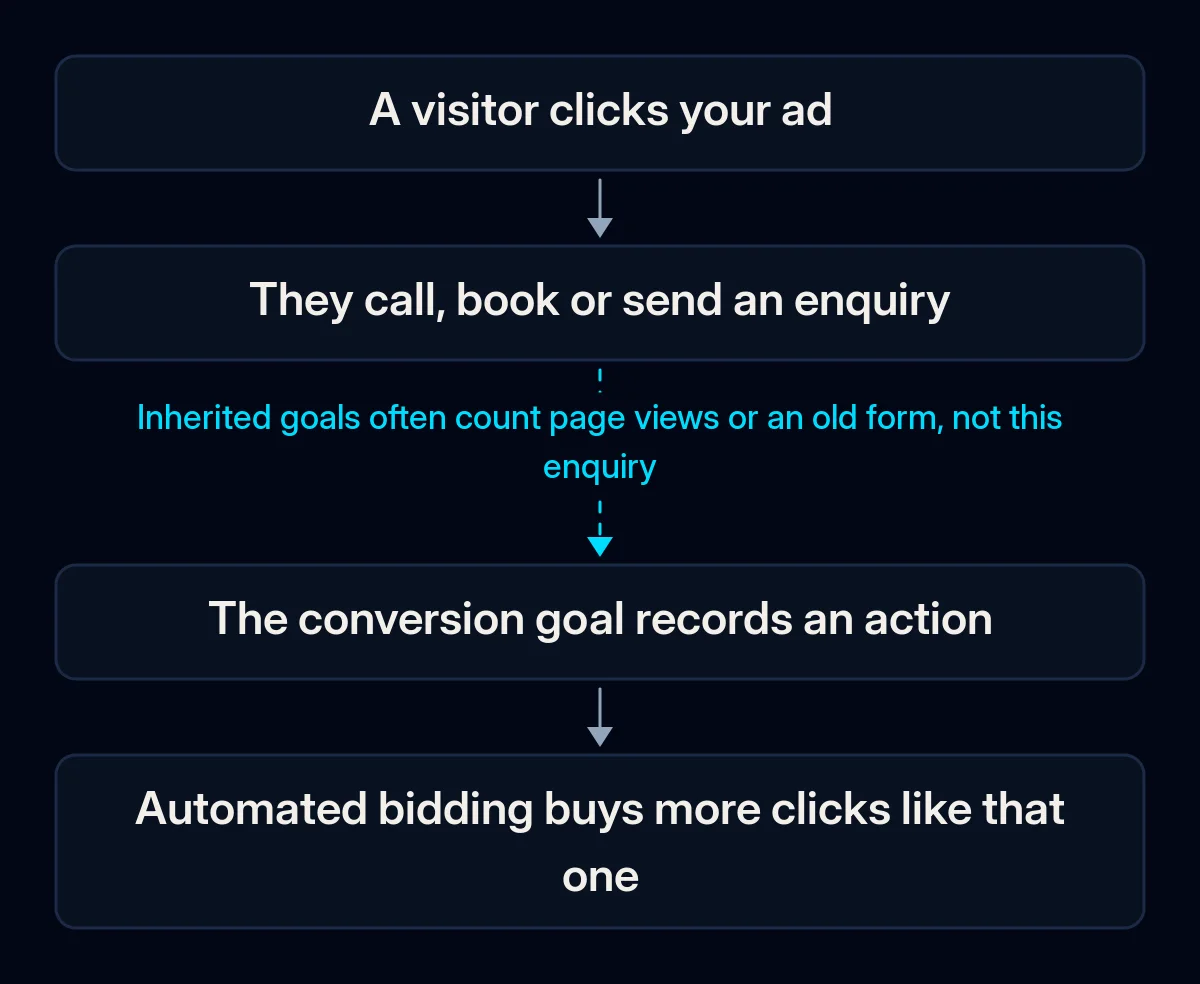
The conversion goals count the wrong things. Tracking was set up for an older version of the site, an old form or a thank-you page that no longer exists. Some accounts count page views or button clicks as conversions; others count the same enquiry twice after a redesign. The sign: the conversions in the account do not match the enquiries in your inbox or CRM for the same period.
Automated bidding learns from that wrong signal. Smart bidding buys more of whatever the goals record. If the goal counts page views, the account learns to buy visitors who look around and leave, and reports it as success.
Changes happen without a decision. Recommendations may be set to apply automatically, and the platform upgrades campaign types on its own schedule. The sign: the change history is full of edits made by the system rather than by a person.
Campaigns are layers of old decisions. Campaigns for services you no longer sell, a promotion that ended, a city you left, two campaigns bidding on the same searches. The sign: several campaigns are running and nobody can say in one sentence what each one is for.
The Google Ads account audit checklist, in the order we run it
Set aside an evening. Everything below is free and happens inside the account. Go in order: the first check that fails is usually where the work starts.
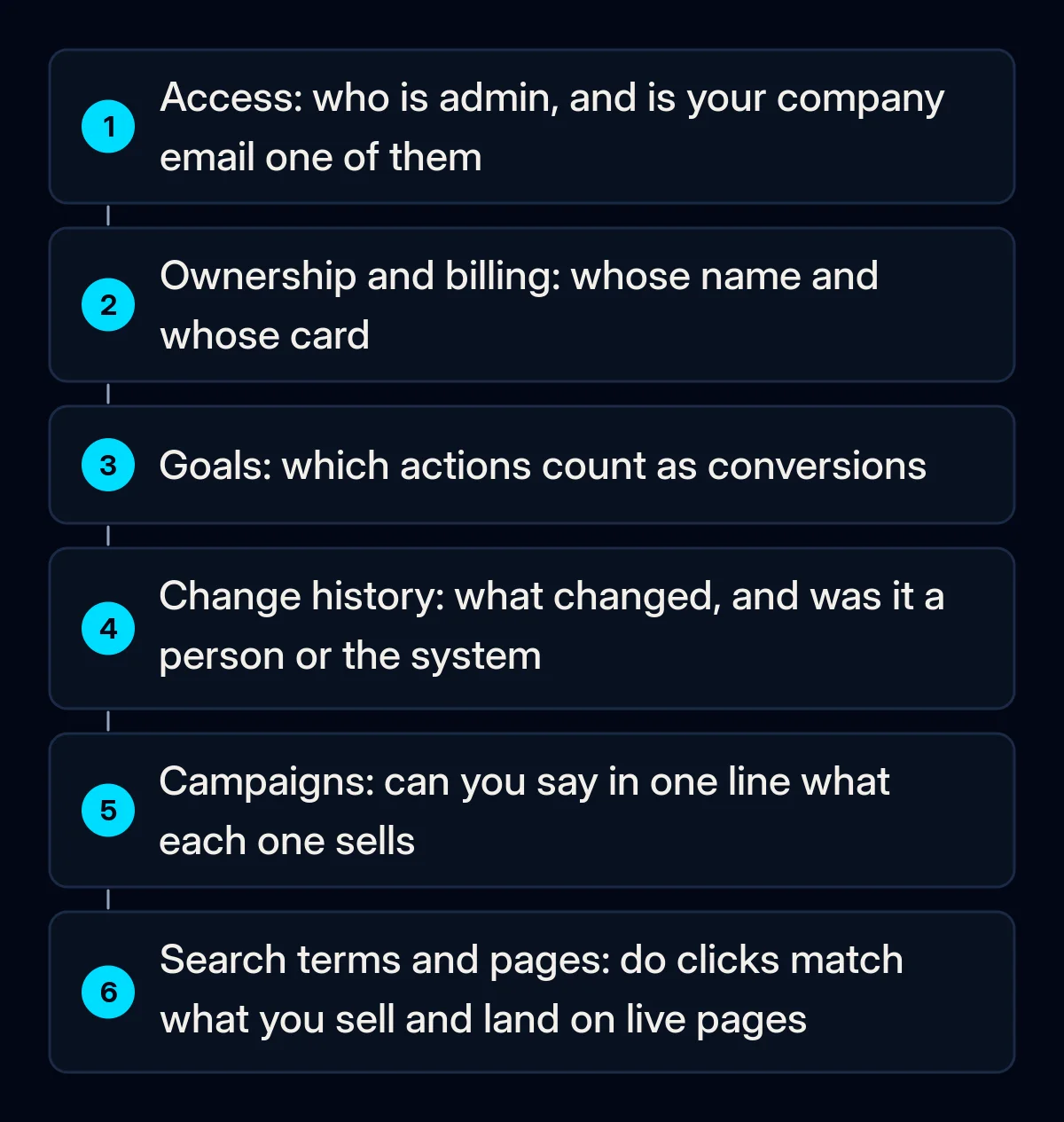
- Access. Open Admin, then Access and security. List every user and their access level. Your company email should be an admin; a personal address of someone who has left should not.
- Ownership and billing. Check the payments profile: whose name is on the invoices and whose card pays. Check whether a manager account is linked, and whose it is.
- Conversion goals. Open Goals and see which actions count as primary conversions. Compare last month’s conversions with the enquiries you actually received in the same month. A clear mismatch explains most “the ads don’t work” questions on its own.
- Change history. Read the last few months. Who changes what, how often, and how much of it was applied automatically.
- Campaigns. List the enabled campaigns with their spend. Next to each, write one line: what it sells, where, to whom. A campaign you cannot describe in one line is a candidate for pausing.
- Search terms. Open the search terms report for the campaign that spends the most. Read the actual searches and mark the ones that have nothing to do with what you sell.
- Ads and landing pages. Click through every final URL. Look for redirects, missing pages, ended offers and old prices.
The fix, in order
Cheapest and safest first. The point is to change one layer at a time, so you can see what each change did.
- Secure access before touching anything else. Add a company email as admin, remove users nobody can vouch for, and move ownership off personal addresses. If an agency still controls billing, agree on the handover in writing.
- Save the current state. Download campaign, keyword and search term reports and note the key settings. The change history keeps a record, but your own snapshot makes it easy to compare and to undo.
- Fix what counts as a conversion. Keep one primary goal per real type of enquiry: a form, a call, a booking. Move page views and clicks to secondary. Then send a test enquiry yourself and watch it appear. If clicks keep coming and enquiries do not, we went through the other causes in Google Ads that bring clicks but no enquiries.
- Turn off automatic recommendations you did not choose. Review each one and apply only what you understand. Automation works well when it learns from the right goal; that is exactly why the goal comes first.
- Pause, do not delete. Pause the campaigns nobody could describe in one line. Pausing keeps history and can be reversed if someone still depended on one of them.
- Clean the searches and the pages. Add negative keywords for irrelevant searches and point every ad to a live page that matches its promise. In our paid advertising campaigns this audit is the first piece of work, before any new campaign is built.
- Connect the account to where enquiries end up. When conversions are compared with real sales in a CRM, the account can learn from paying customers instead of form submissions. This link between ads and sales is part of our CRM and analytics projects.
- Only then rebuild the structure. New campaigns and budgets make sense once access, goals and pages are right. Rebuilding on top of wrong goals repeats the old problem with a fresh look.
After changing goals, give automated bidding time to relearn before you judge results, and avoid changing several layers in the same week.
What to measure
- Conversions in the account against enquiries in your inbox or CRM, monthly; after the fix these two should tell the same story.
- Spend on campaigns you can describe in one line, monthly; everything else should shrink to nothing.
- Search terms that match what you sell, in a weekly look at the report for the biggest campaign.
- Cost per real enquiry, month over month, starting after the relearning period rather than the day after the change.
Where we come in
An owner with admin access and an evening can find where an inherited account went wrong and fix the first layers without outside help. What we bring is the order and the discipline: access before settings, goals before bidding, one layer at a time, and a monthly comparison with real enquiries rather than with the account’s own numbers. If you would like a second pair of eyes on your account, a short brief is enough to start.