The app is finally live in the App Store and Google Play. Staff installed it, a few friends did, and then the numbers went flat. You search for your own business in the store and scroll past apps you have never heard of. The question behind the frustration is simple: how to get app downloads when the app works and nobody seems to know it is there.
The usual conclusions are that the app is bad, that the stores favour big brands, or that the only way forward is to buy installs. Most of the time it is none of these. The path from a search in the store to an install has a few steps, each one leaves a trace in the store console, and you can find the step where people drop away yourself.
Why an app in the store gets no downloads
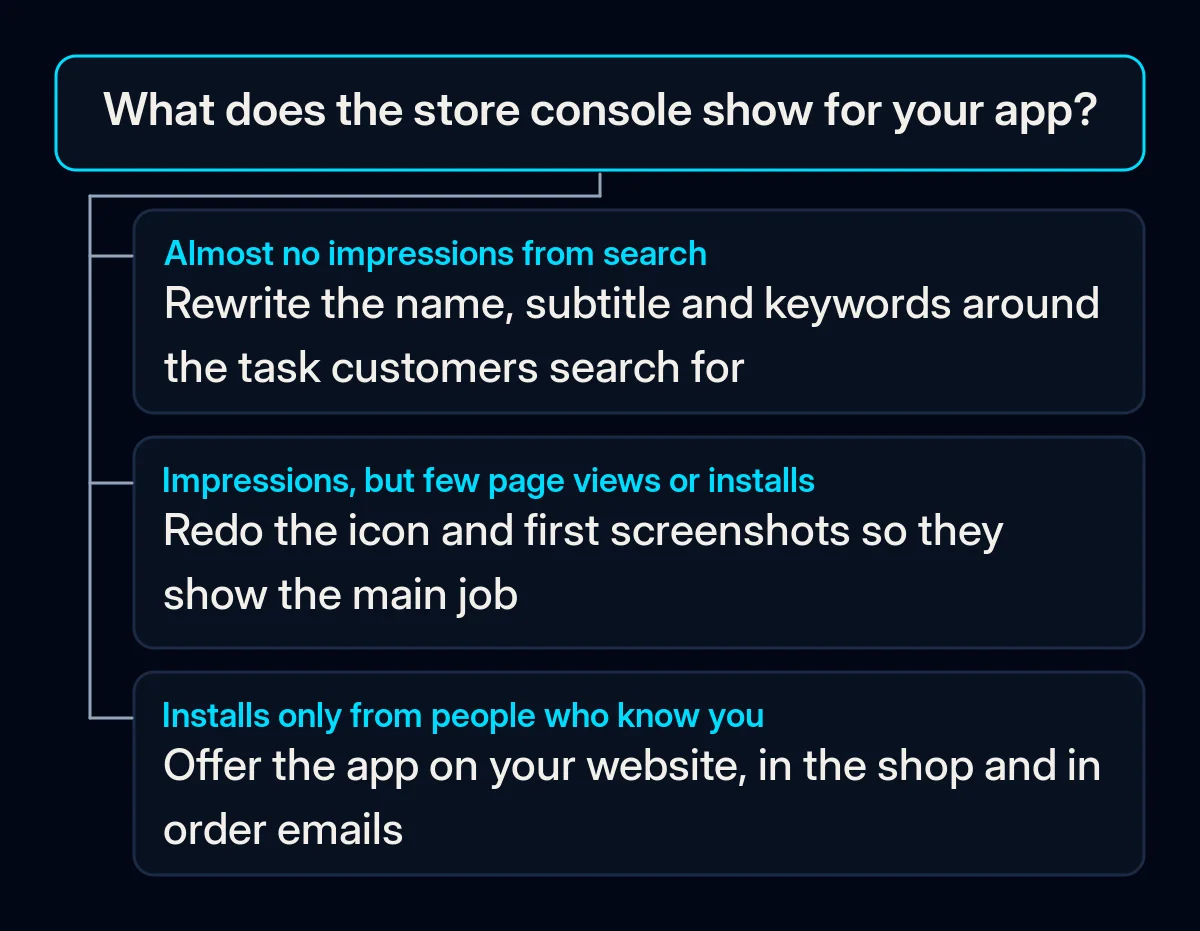
Store search does not connect your app to the task. People search the store for what they want done — book a table, order a refill, track a delivery — not for your brand. The store matches those words against the app name, the subtitle or short description, and the keyword fields. An app named only after the business simply does not appear. The sign: in App Store Connect or Google Play Console, impressions from store search are close to nothing.
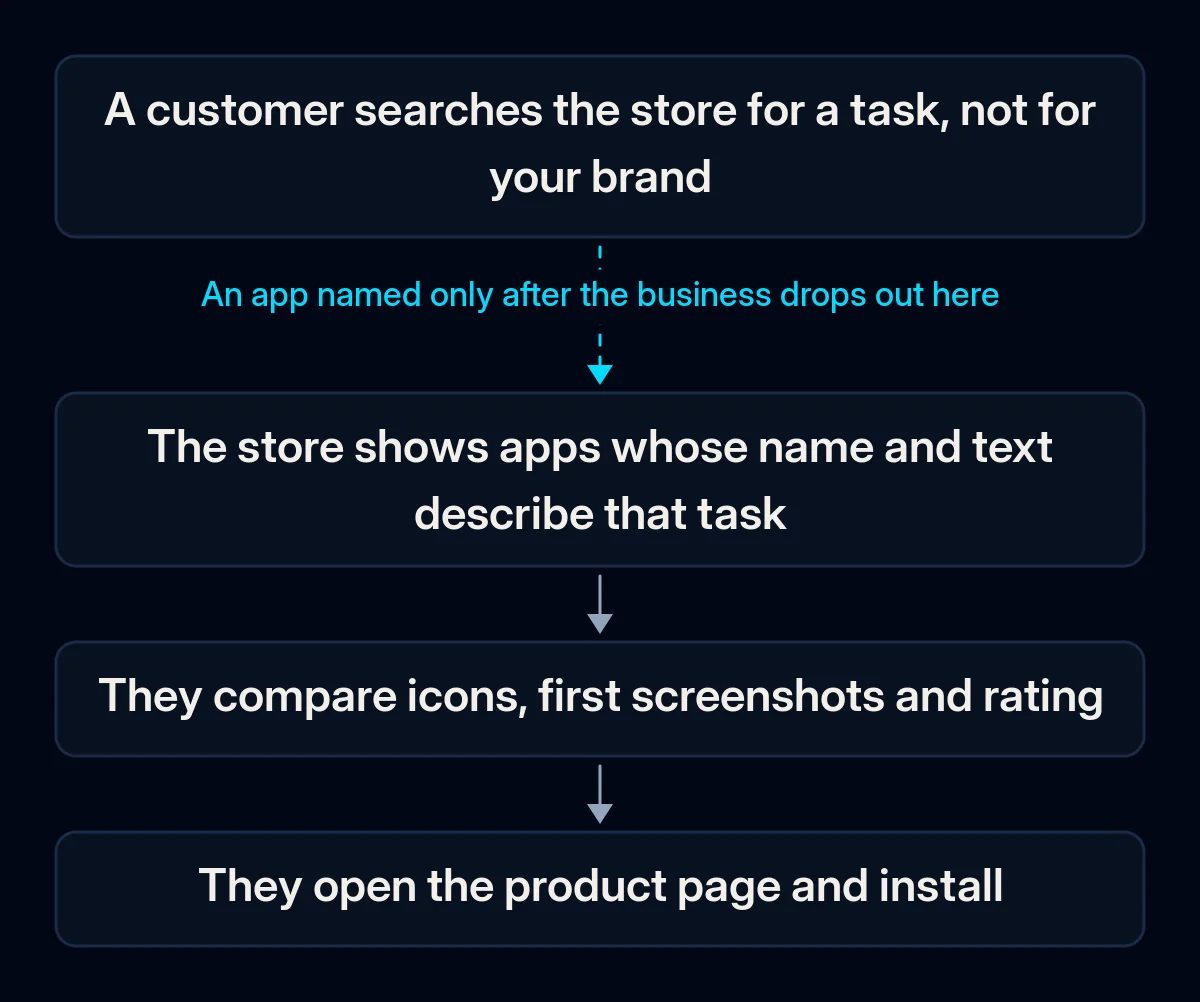
People see the app and do not open or install it. In the results, the icon, the name and the first screenshots do the persuading before anyone reads a word of the description. Screenshots of a login screen or a settings page tell nobody what the app is for. The sign: impressions grow, but product page views and installs do not follow.
The rating or the reviews put people off. An app with no reviews looks untested; an app whose visible reviews complain about a crash from the first version looks broken, even if the crash was fixed long ago. The sign: a low rating, old complaints near the top and no replies from you.
The customers who would use it never hear about it. For a business app, the people most likely to install are those who already buy from you. If the website, the shop, the receipts and the emails never mention the app, they will not go looking for it. The sign: the mobile website has no link to the app, and staff do not mention it.
Install ads went out before the store page was ready. Paid installs send people to the same page. If that page does not persuade, the budget buys page views, not users. The sign: money spent on install campaigns, few installs, and a cost per install that keeps growing.
How to tell which one is yours
Set aside an hour with App Store Connect and Google Play Console, both free. Go in order; the first check that fails is usually the answer.
- Search the store for the task, not the name. Type the words a customer would use for what your app does, on a phone in your target country. If you do not appear in the first screens of results, start with search visibility.
- Look at impressions and their sources. In the store console, see how many impressions come from search versus from links and browsing. Almost nothing from search confirms the first cause.
- Compare impressions, page views and installs. If people see the app but do not open the page, the icon and name are the problem; if they open the page but do not install, the screenshots and description are.
- Read the reviews people see first. Sort as the store does and read the top ones as a stranger would. Note complaints that are still true and those that are long fixed.
- Follow your own customer’s path. Open your website on a phone, walk into your shop, look at a receipt. Count the places where the app is offered with a reason to install it.
How to get app downloads: the fix, in order
Cheapest first. Most of what gets an app downloaded is work on the store page and on channels you already own.
- Write down the task words. Collect how customers describe the job your app does: from support messages, search suggestions in the store as you type, and the words staff hear every day. These words, not your internal feature names, go into the listing.
- Rewrite the name, subtitle and keyword fields around those words. Keep the brand, add the task: the name and subtitle on the App Store, the title and short description on Google Play, and the keyword field Apple provides. In our mobile app development the store listing is written together with the app, not the night before release.
- Redo the icon and the first screenshots. Show the main job in the first screenshots, with a short caption in plain language that says what the person gets. Leave login screens and settings out.
- Work on ratings. Ask for a review inside the app right after a success — an order placed, a booking confirmed — using the built-in review prompt. Reply to every review, fix what is still broken, and say so in the reply.
- Tell the people who already buy from you. A banner on the mobile website, a code at the till and on packaging, a line in order emails. If you are still unsure what the app gives customers that the website does not, we went through that question in app vs mobile website.
- Only then pay for installs. Once the page converts visitors from search and from your own channels, install campaigns in the App Store and Google Play have something to send people to. In our paid advertising campaigns we start install ads on the task words that already work in organic search.
- Change one thing at a time. Update the listing, wait for the store to show the new version to enough people, then read the console again before the next change.
What to measure
- Impressions from store search for your task words, monthly; this is the first sign that the listing is being found.
- The share of page visitors who install, after each listing change; it tells you whether the icon, screenshots and text persuade.
- Installs from your own channels, through separate links for the website, shop and emails, monthly.
- Rating and replied reviews, monthly; watch the reviews shown first, not only the average.
Where we come in
An owner with access to both store consoles and an evening can find where installs are lost and fix the listing without outside help. What we bring is the order: task words before design, the store page before ads, owned channels before paid ones, and one monthly reading of the console rather than guesses. If you would like us to look at your store pages with you, a short brief with the app’s links is enough to start.