Apple retention messages can now be configured in App Store Connect for auto-renewable subscriptions, Apple announced on 4 November. These messages appear in the subscription cancellation flow. For an app owner, the first job is to check the shared wording, the no-offer version and the approval state. A test draft and the live message can be different versions.
What changed in App Store Connect
Apple’s announcement makes the console configuration available alongside the separate Retention Messaging API. That API already existed: its changelog records an initial pre-release in 2025. Access to the API remains by request. An owner using the console route does not need a real-time server integration first.
The scope is App Store auto-renewable subscriptions. Check how the subscription is billed before assigning work: Apple’s cancellation help distinguishes Apple billing from other providers. This configuration does not set up a cancellation message for a website checkout or Google Play.
The API overview lists supported display versions as iOS 15.1 or later, iPadOS 15.1 or later, macOS 14 or later and visionOS 1 or later. It places the message on Confirm Cancellation after the subscriber taps Cancel Subscription. The customer can still complete cancellation. Include the device and OS in the check record; a desktop preview alone cannot establish what a subscriber sees.
How Apple retention messages appear
Apple’s setup help separates the shared text from an optional image and optional retention offers. An eligible subscriber sees an attached offer in place of the image. Someone without an eligible offer sees the text with the configured image, or text alone if no image was added. Preview both the offer and no-offer versions before submitting the message.
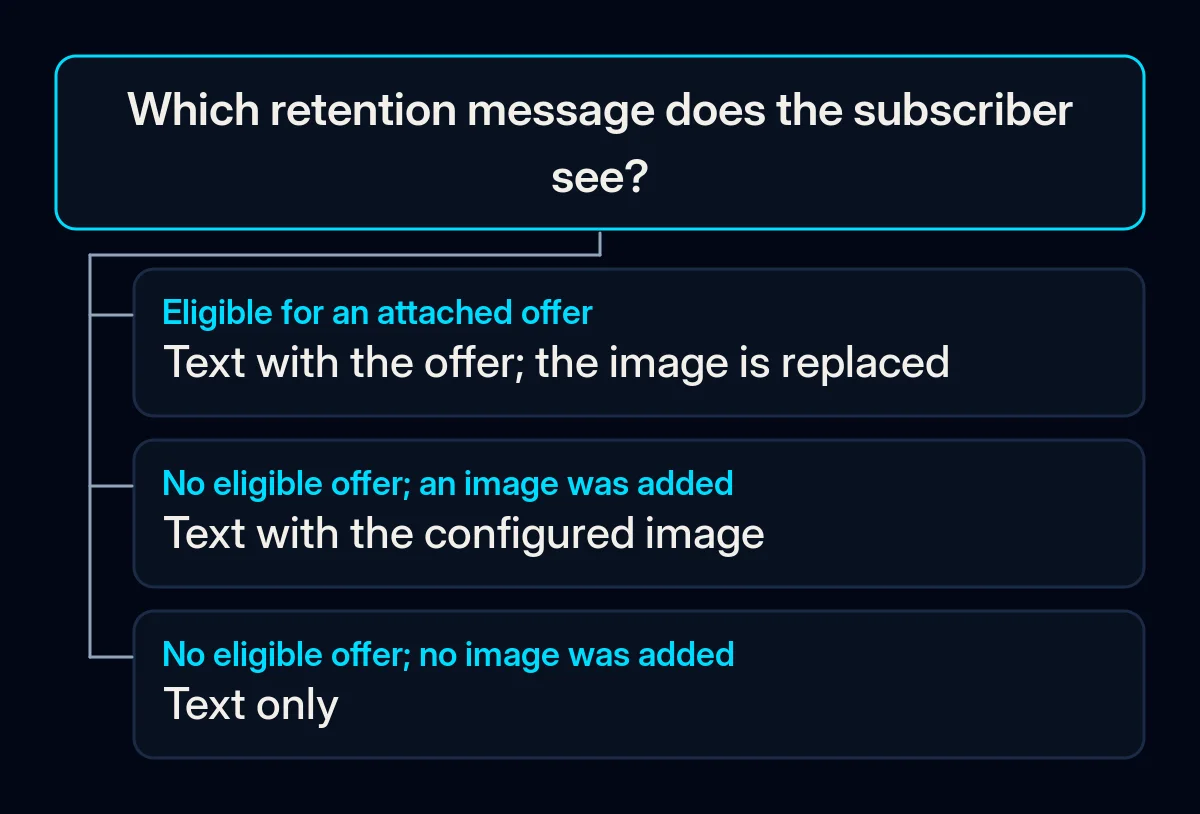
The header and body need to remain accurate in either view. Apple prohibits offer, discount and price mentions in that shared text because subscribers without the offer also see it. Describe a benefit the product actually provides. If you describe what ends after cancellation, check that the wording matches the real entitlement and its end date.
Review each offer separately. Apple’s offer settings include paid subscription duration, countries or regions and a wait before redeeming the same offer again. That wait applies to each offer individually. Review the relevant offer configuration and its terms; do not assume it is a waiting period across every offer on the subscription.
What it means for your business
We would start with a scoped review of the existing subscription. Record the plan, language, storefront, device, OS, environment and message version together, followed by the expected view and the observed result. Assign unresolved differences to a named maintainer. This is a proposed working record, not a form Apple requires or a test we have performed in your app.
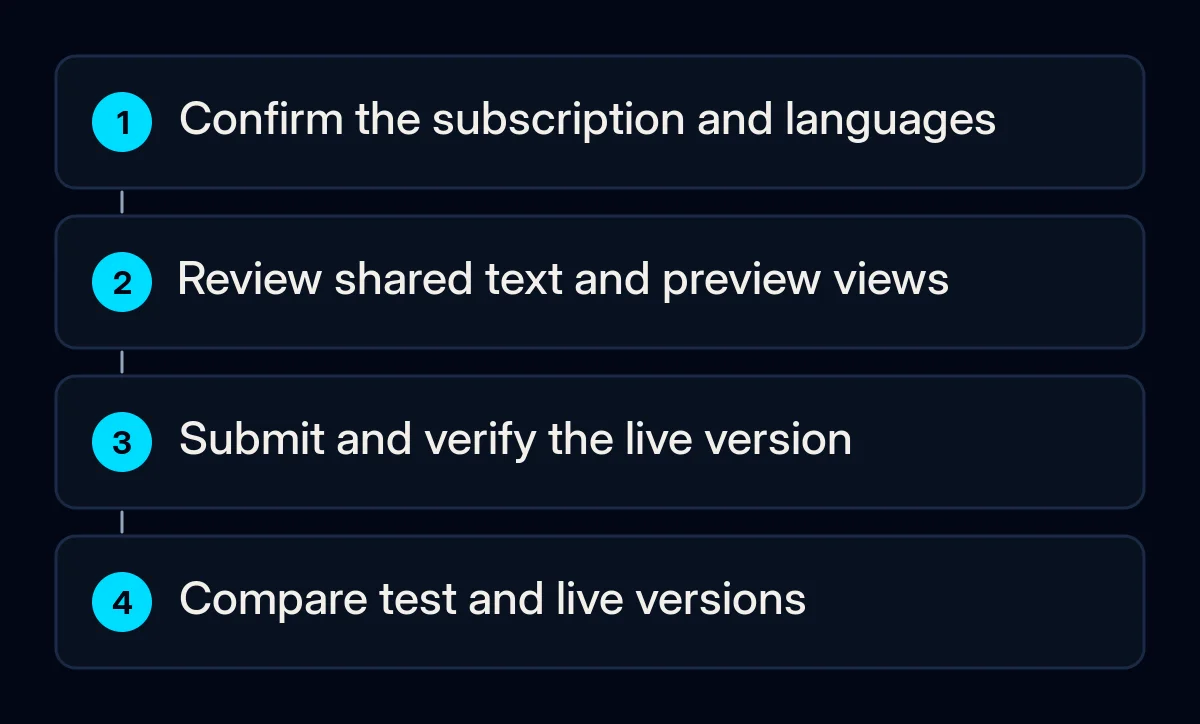
- Confirm the account and the subscription. Apple’s listed roles are Account Holder, Admin, App Manager and Marketing. In App Store Connect, select the app, then Monetization, Subscriptions and Retention Messaging. Use Get Started or the add control as appropriate. If the controls are unavailable, ask the account owner to check the role and app access before proceeding.
- Review the shared wording. Ask the product owner to confirm each benefit and cancellation consequence. When there is an unresolved product complaint, give it a separate repair task. Our guide to turning app complaints into a repair plan covers that work without assuming a rating or retention improvement.
- Check the assignment and languages. Apple’s help allows a message to cover several subscriptions, while each subscription can have only one assigned message at a time. Saving a different assignment can remove the previous association. Record what is attached before changing it and prepare localizations for every storefront where the subscription is offered.
- Preview the different views, then submit. Use the subscription selector and, where offers are attached, preview the relevant offer and None. Check the words, any image and the applicable terms in each language. Save the draft, then use Add for Review when the intended content is ready.
- Give the maintainer a concrete verification task. Compare the expected screen and subscription state under the recorded conditions. If the result differs, keep the mismatch open with the environment and version attached. This is the kind of scenario check we include in mobile app development and maintenance.
If subscribers already use a support or product-value page on your website, review its content and mobile presentation alongside the message. Our website work includes that check. Keep the existing page and the retention message as separate surfaces in the verification record.
Check the live version and the later outcome
Use Apple’s status reference to distinguish Approved from Accepted. Approved is live for eligible subscribers; Accepted can still be held by another item in the same submission. A saved preview is insufficient evidence of publication. Apple also says Sandbox testers see the latest draft, while the current approved version remains live during review of edits.
Keep test and live observations separate. Check which version was approved before asking the maintainer to verify the published view through an authorised route. Apple says a newly approved draft replaces the previous published version and that you cannot roll back to a previously published version. If there is a problem, preserve the current evidence and prepare the correction for review; do not treat a draft screenshot as proof that it is fixed live.
For measurement, Apple’s Retention Messaging report distinguishes page views, cancellations and saves. It defines a save as choosing not to cancel after seeing the cancellation screen. We would review that action alongside later subscription and payment outcomes, noting the offer terms and comparison period. A screen decision alone does not establish a completed renewal or show that the message caused a business improvement.
Start by asking for the no-offer preview and the exact live approval state for the same subscription and language. Any difference between that record and the observed view becomes the next task to resolve.