To diagnose a confusing app interface, look at its screens, controls and responses while someone tries a task the app supports. Watch for the first point where the next action becomes unclear. Compare what the person expects with what the app does and reports. A failed save or a missing feature needs a different repair from an unclear label or route.
Imagine someone trying to change a booking that already exists. They open several menus, return to the home screen and ask a colleague. That sequence is a starting point for an observation. It alone cannot explain whether they later uninstall the app or which screen needs a redesign.
Why do people lose the next step?
People can understand the goal and still miss an unclear action or response. We look for the first visible mismatch between their intended task and the screen they encounter. Do not settle on an explanation until you have checked the operation. What looks like a navigation problem can also be a failed request or an outcome the product does not support.
The wording suggests a different action. A person may expect another review screen after tapping Continue, while the app immediately submits a request. Apple’s button guidance recommends making the purpose clear. Compare the expectation with the real effect before choosing a replacement label.
The result stays uncertain. Someone taps again because they cannot tell whether the app accepted the request. Inspect what was actually saved and what the screen reported. A missing confirmation and an operation that failed need different repairs.
Input guidance arrives after the mistake. Check whether the field explains the value it needs.
For web content, W3C’s labels-or-instructions criterion requires labels or instructions when content requires input. Use that reference for web screens within an app. Native apps need a separate platform review.
The route loses its context. Someone returns from a detail screen and cannot recover the item they were changing. Record that starting point, the chosen action and the resulting screen. Keep the first confusing transition precise enough to reproduce.
How do you diagnose a confusing app interface?
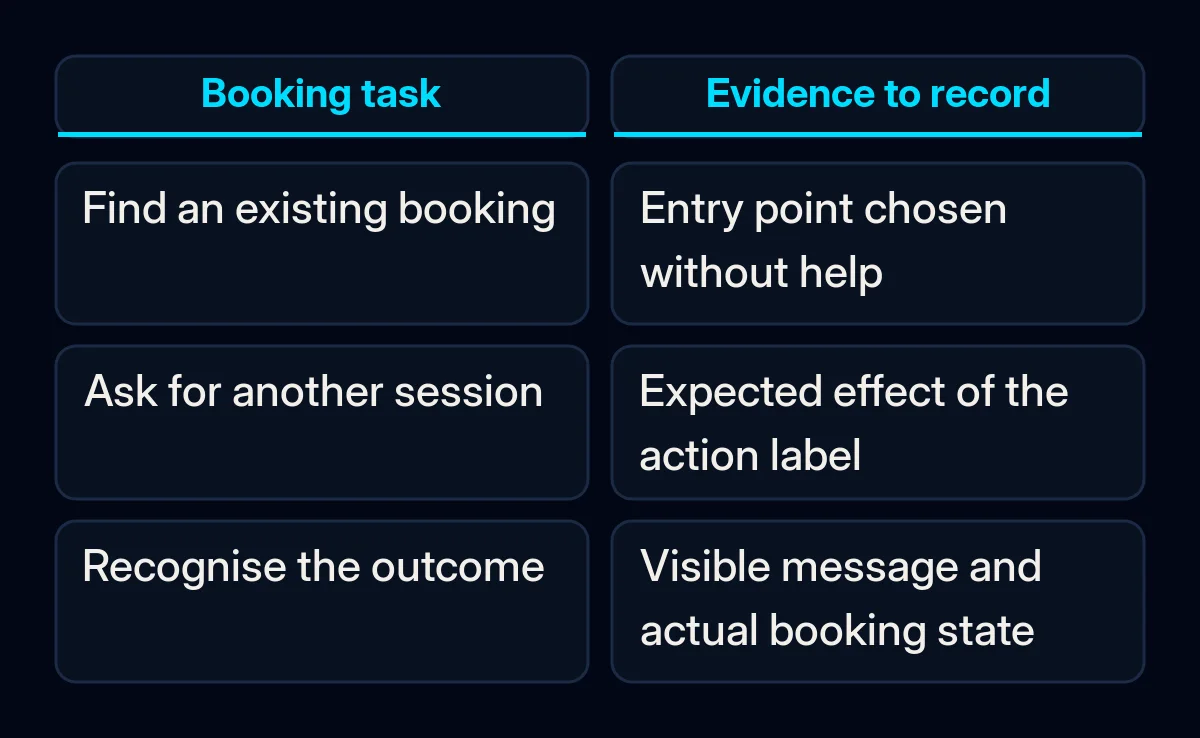
Begin with a supported outcome and a comparable starting state. Use a test account and safe test data for actions that send, charge, delete or affect someone else. Write the goal without naming the menu or control that leads there. You want to learn what the person can find and understand before you supply an explanation.
- Define completion. For a booking change, is the intended outcome a submitted request or a confirmed new booking? Check which outcome this version and account can support.
- Record the starting state. Note the app version, device, language, permissions and whether the booking already exists. An administrator’s account can expose a different route from a customer’s account.
- Observe without naming the control. Ask the person to try the goal. Record the screen they choose, the label they read and what they expect. If you help, note the help; later completion does not erase it.
- Check the outcome separately. Compare the visible response with the saved booking. Reopen it in the test account or check the provider’s test record. A tap or a screen that looks successful does not establish that the intended update happened.
If you inspect the app alone, record what you can reproduce and keep that limitation visible. Your knowledge of the product changes the task. A later observation with someone unfamiliar with it provides different evidence.
Work through this fictional booking task
Consider an invented class-booking app that lets someone request another session. The provider must accept that request before the booking changes. The notes below illustrate how to investigate a misunderstanding. We have not used a live app, account or participant for this example, and we have not tested the proposed wording.
| Observation | Note |
|---|---|
| Intended task | Move an existing class booking to another session. |
| Action and exact label | The person taps Change booking; the button sends a request. |
| Expected result | The person believes the new session is already booked. |
| Actual state | The original booking remains while the request awaits acceptance. |
| Proposed check | Try Request a change and a message that says the request was sent. |
The observed mismatch concerns what the action means. A different label is a hypothesis to test against the actual operation. If the request never reaches the provider, investigate the failed operation as well. If immediate confirmation is essential to the product, that is a separate product decision, not something a button label can supply.
Write an observation before its interpretation. “Opened the booking, tapped Change booking and expected confirmation” describes behaviour in this fictional exercise. “The interface is bad” skips the question you still need to answer.
Make the smallest change that answers the observation
Choose a repair that addresses the recorded mismatch and preserves the intended operation. Start with wording, instructions or feedback when those are the uncertain parts. A changed navigation structure or wider redesign needs a reason grounded in the task. Keep functional failures visible so a clearer explanation does not conceal an operation that still fails.
-
Try a focused draft. For the fictional booking, show a proposed action label and resulting state in a clickable draft. Our app UX audits and prototypes follow this task-to-prototype sequence. Compare what the person expects before tapping with the state they recognise afterwards; do not describe the proposed label as an established improvement.
-
Check an error path. W3C’s error-identification criterion for web content requires an automatically detected input error to identify the affected item and describe the error in text. A coloured outline alone leaves that explanation missing. Native controls and a complete accessibility review require their own platform checks.
-
Check the response on screen and with assistive technology. For web content, W3C’s status-message criterion addresses making defined status changes available to assistive technology without moving focus away from the current control. Check what appears on screen and what assistive tools can detect. A screen reader, for example, is software that can read interface content aloud. This selected criterion does not certify the app, set a response-time target or repair a slow operation.
-
Follow the web transition. When the same account or booking route crosses into a web page, include that transition in the test. Website and web-app development should preserve the task’s wording and actual state across that boundary.
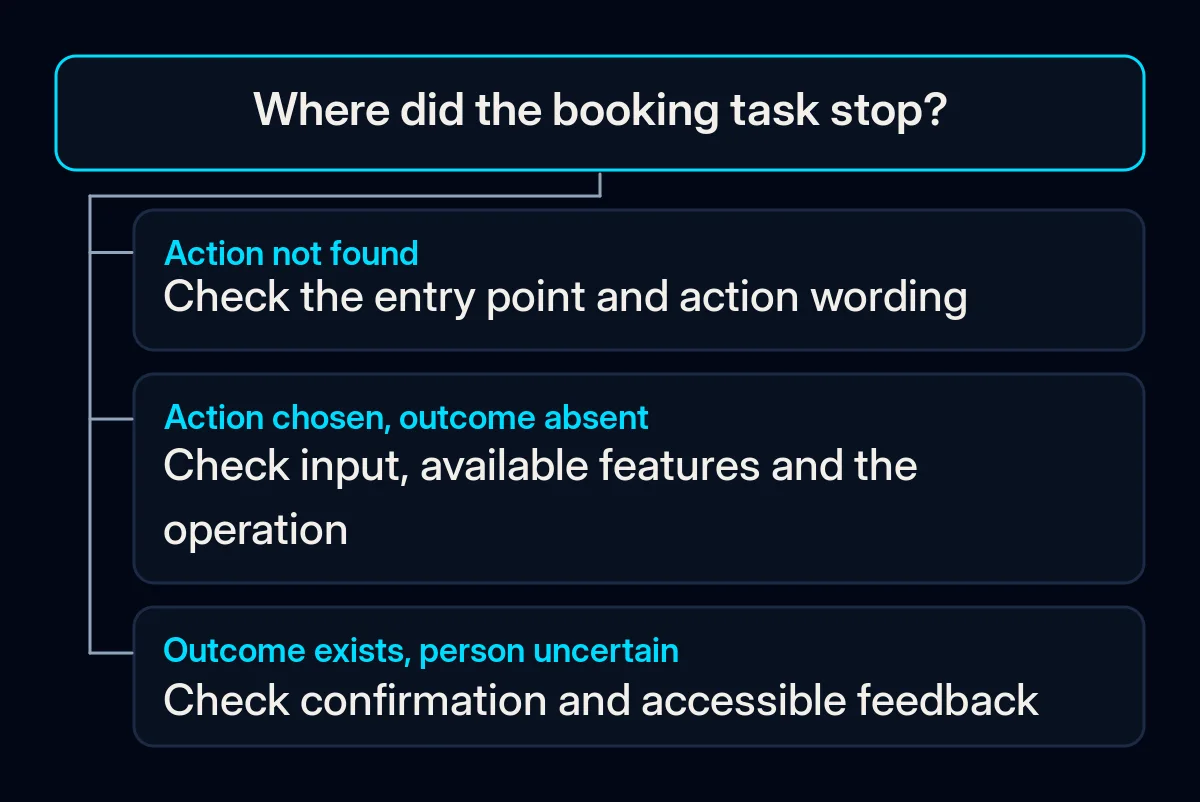
What should you check after the change?
Replay the same intended task from a comparable state and record what happened. Keep the app version, device, language and help visible beside the result. A useful comparison concerns the task you observed: whether the person found the action, understood its effect and recognised the actual outcome. Leave any broader business conclusion open until you have evidence for it.
Record completion and help together, the first wrong turn, input errors the person could not interpret, and whether they mistook a request for confirmation. Repeat relevant checks with the language and accessibility setup you are reviewing. Inspect longer labels and the information available through that setup rather than assuming the English screen represents every version.
If you already record app actions, such as a booking-change request starting or reaching the provider, check that the records match those actual states. Keep changes in support questions alongside the same route. Missing app downloads are a separate acquisition problem; our guide to an app that gets no downloads starts before someone opens the product.
A successful replay can describe that observation. It cannot establish why people uninstall the app or attribute a retention change to the repair. Record the next unresolved question with the person responsible for checking it.
Where we come in
We start with the supported task, the first unclear transition and the evidence needed to choose a repair. We can turn that into a prototype, check the implemented route and include its web counterpart. Bring a description of the task and the point where it stopped to a project discussion. Remove customer names and other personal information from any example you share.