
An App Store rejection needs a response matched to the cited issue. Start with the review message and check what failed. Apple’s current guidance allows replies after information, metadata or server-side corrections; a fix to the submitted build’s code needs a new build. If you dispute the decision, clarify it before appealing.
Resubmitting immediately can restart work you could have resolved in the conversation.
We start by putting the message beside the submitted app and recording what the reviewer could see. That gives you a concrete task to discuss with the developer, even if you cannot change the code yourself.
What does your App Store rejection actually say?
Read the status and the affected item before choosing a fix. Apple’s status reference distinguishes a submission waiting for review from a rejected app or rejected listing information. A submission can include several items. Record which one has the issue, the cited guideline and the reviewer’s explanation; an old rejection badge alone is too little information to act on.
Metadata means the listing information, such as descriptions and screenshots, outside the app’s executable package. A build is the packaged version sent for review. Apple’s App Review Guidelines treat completeness, accurate metadata and sufficient app functionality as separate requirements. A clearer description cannot repair a crash, while a working feature may still need better information for review.
Keep a task record with these fields: affected item, guideline, observed problem, proposed correction, evidence, responsible person and next action. Use the reviewer’s actual concern. Leave a field marked unknown when the message does not explain it, then ask a focused question.
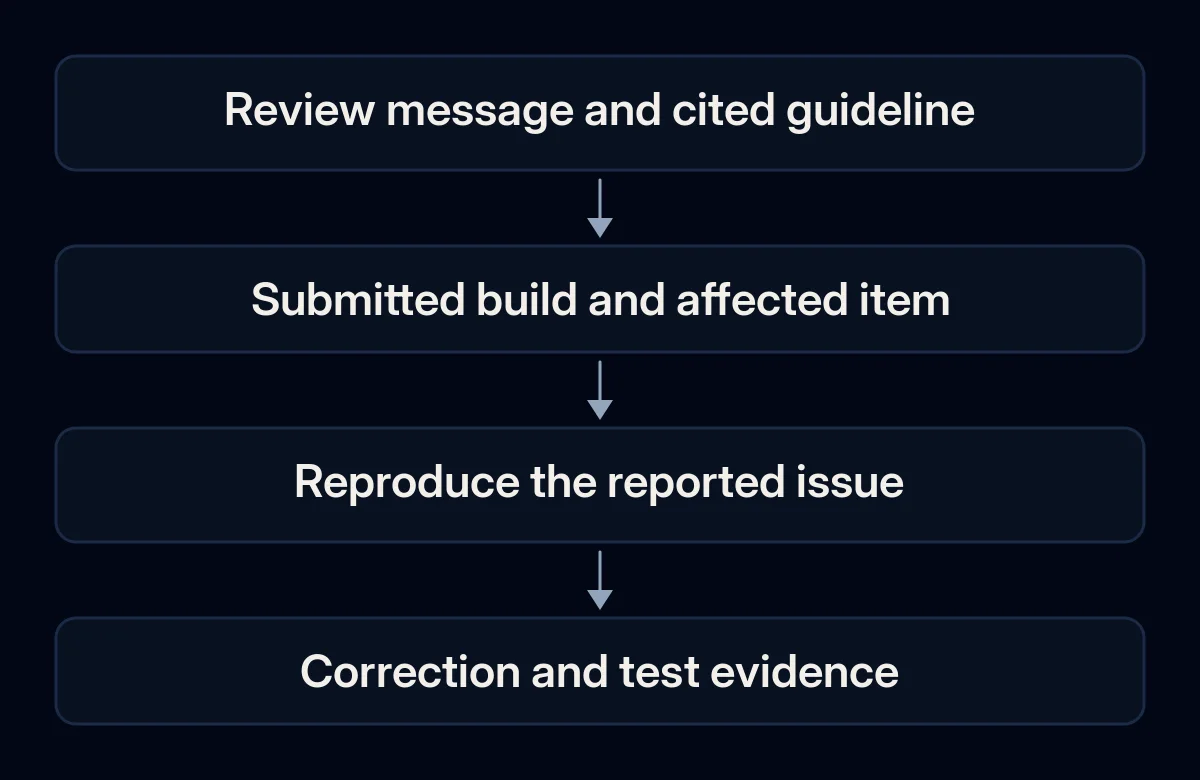
Find the problem the reviewer could reproduce
Test the submitted version, starting from the point described in the message. Your everyday account may already have access or completed setup that a reviewer lacks. Apple’s preparation guidance asks for working demo credentials and the information needed to reach the app’s features. Check the complete path before asking the developer for a new release.
- Match the version and environment. Ask the developer which build was submitted and which device and operating system were tested. Apple’s device-testing help calls for physical-device testing, including relevant compatibility modes. Record anything you cannot reproduce on the devices available to you.
- Try the review account from a fresh login. Follow the supplied steps through the reported feature. Check account roles and any authentication code instructions. Apple’s complete-review help asks for these details in advance; credentials must remain usable when review starts.
- Read the listing beside the app. Compare the screenshots and description with what that build actually does. If the rejection concerns a permission message, Apple’s purpose-string guidance requires a concrete explanation of how the app uses the requested resource.
- Check the cited privacy behaviour. For an account-deletion issue, test the actual route. Apple’s guidance requires apps supporting account creation to offer in-app initiation of deletion; deactivation alone is insufficient. Retention duties and regulated-app exceptions need their own check.
Use a test account with safe sample data. A recording or attachment should show the failed or corrected path without exposing customer records or credentials.
Reply, submit a new build or appeal?
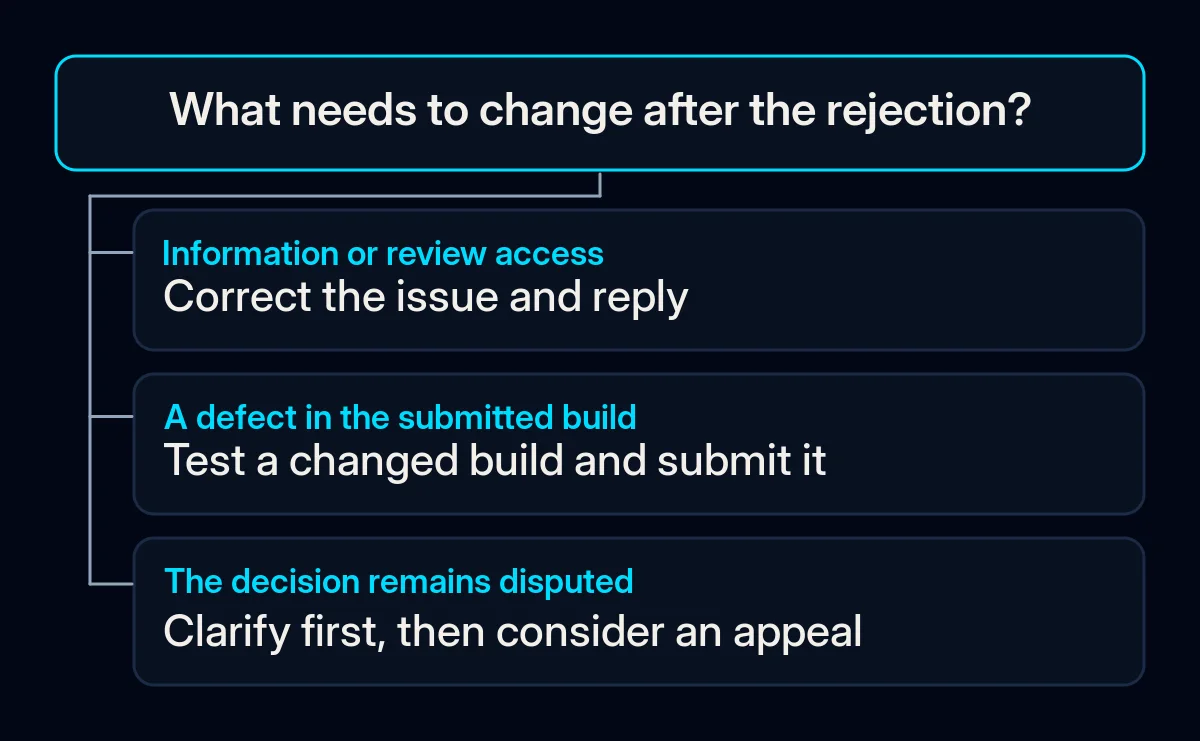
Choose the route after you know what has changed. Apple’s review-status help distinguishes corrections that can be explained in a reply from changes needing another review. The table is a decision aid for an existing rejection; a removal notice or account action needs its own process.
| Situation | Supported next action |
|---|---|
| Missing information, corrected metadata or a server-side access fix | Correct the issue and reply in App Store Connect |
| A defect in the submitted build has been fixed | Upload the changed build and submit it for a new review |
| You believe the decision misapplies the cited rule | Clarify in the conversation, then appeal if unresolved |
Apple warns that a resubmission starts a new review and ends replies to the previous message. Resubmitting during an appeal closes that appeal. Check with the person handling the conversation before changing the submission.
An explicit Bug Fix Submission offer is a separate case. Apple’s help limits it to eligible updates of previously approved apps, with no legal or safety issues. Acceptance is by reply, with the issues to be fixed in the next update. Read the offer before using the ordinary new-build route.
Prepare the correction and the evidence together
Give each issue a correction and a way to check it. We keep the developer’s task and the reviewer response tied to the same record, so a change to the app is reflected in the information sent with it. Start with the checks you can do yourself, then assign code changes to the developer.
- Remove access and information gaps. Update the review notes with the app’s purpose, changed features, external services and regional differences where relevant, following Apple’s complete-review help. Test the credentials again after changing them.
- Check the connected website. Open the support and privacy URLs named in your submission on a phone. Check the destination and wording against the app being reviewed. This consistency check can be part of website development work when a site supports an app.
- Ask for a demonstrable technical correction. For a build issue, ask the developer to show the reported path after the fix and identify the build containing it. This handoff belongs in mobile app development and publishing, together with review preparation.
- Send a focused response. Apple’s reply instructions use the app’s unresolved-issues link, then In Progress, Resolve and Reply to App Review. Account Holder, Admin or App Manager access is required. Explain the concern, where to find the correction and how to test it; attach relevant evidence if useful, then choose Reply.
- Use an appeal for a remaining disagreement. Apple’s appeal help asks you to clarify first, then address the cited requirements with evidence. Include all violations in the appeal for that app. A request for a status update or faster review belongs elsewhere.
Do not put personal Apple passwords in the task record. Keep the developer account under the business’s control and use the access appropriate to each person’s work.
How do you know the issue is resolved?
Separate a correction you have tested from Apple’s decision. Re-run the exact path after the change and retain the result, the build or information version and the response sent. Then read the current status in App Store Connect. A successful local test tells you about that test; Apple still decides the submission.
Track whether each cited issue has evidence, whether review access still works and whether a later message repeats the same concern. If it does, compare the new message with your record before making another change. Once the app is released, getting app downloads is a separate job.
Where we come in
We start with the rejection message, the submitted version and a reproducible path through the app. We can then separate listing and website corrections from development work and prepare the information for the reviewer. Bring those materials to the person responsible for the release, with the unresolved questions marked, before agreeing to another build.