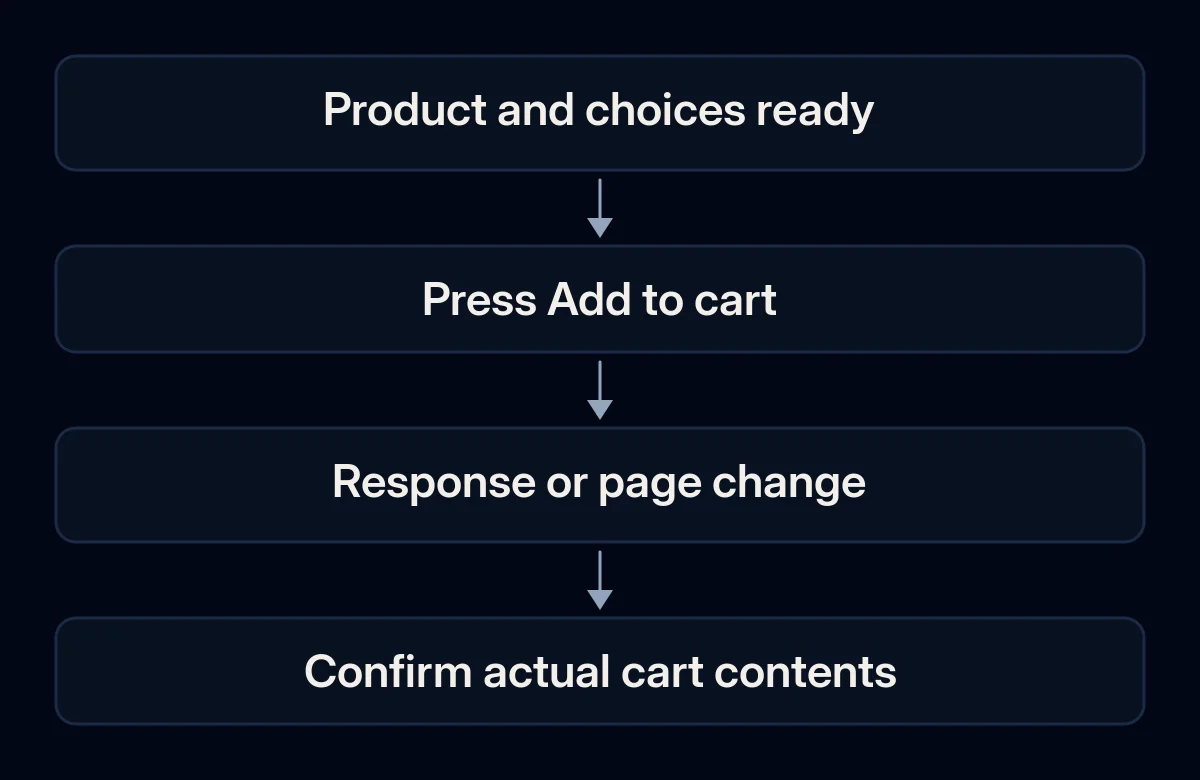
WooCommerce add to cart slow? Start by finding whether the wait begins before the browser sends the request, while the shop responds, or while the cart display updates. Then open the cart and verify the product, selected option and quantity. Observe the live shop without placing an order; make changes on a backed-up, safely configured test copy.
The product page can feel ready while adding an item still leaves the buyer waiting. We start with that complete action and its result, including the selected option and final quantity in the cart.
WooCommerce add to cart slow: where can the wait begin?
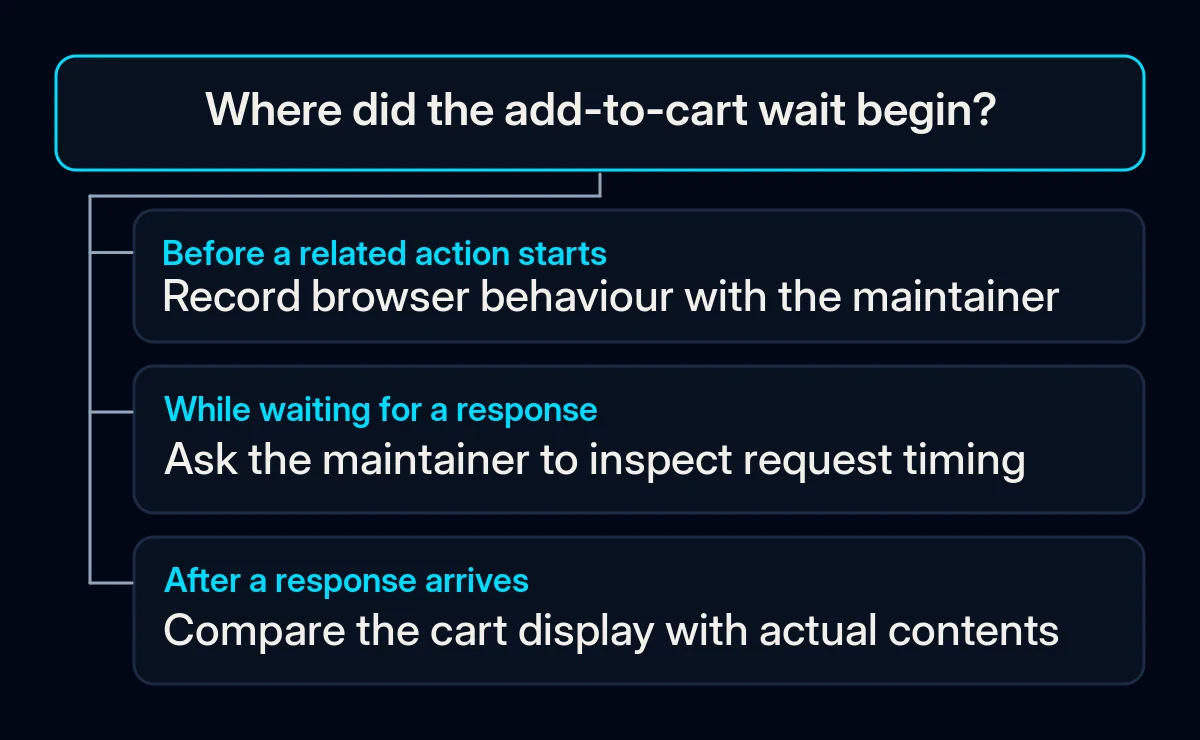
The same visible wait can cover different parts of the action. The browser may be busy before sending the request, the shop’s response may take time, or the small basket display may update after the response. A spinner or a delayed basket count alone does not identify the cause.
WooCommerce’s guide to the small basket display distinguishes the classic cart widget from the Mini-Cart block. Ask your maintainer, the person who looks after the shop, which component it uses before applying advice from that guide.
If whole pages are slow before a product becomes usable, begin with the checks for a slow website. The check here starts after the product and its required choices are available.
Record the action before changing the shop
Use a product you are allowed to test and a known starting basket. Keep the device, browser, connection, language, currency and sign-in state in the record. If adding an item can reserve stock, trigger a booking or contact another system, agree a safe test with the maintainer first. Stop before checkout, payment or a real order.
- Open a fresh browser session and note its sign-in state. Confirm what is already in the basket. Keep the consent choices unchanged during the comparison.
- Open the product, choose any required size, colour or other option, and set the quantity. WooCommerce’s variable-product guide explains how variations can have their own price and stock; keep the exact selection in the record.
- Press Add to cart once. Note the first visible response, any page change and when you can access the basket. A short screen recording can help if it excludes personal details, admin screens and unrelated tabs.
- Open the cart. Compare the product, option and total quantity with the starting contents and the intended addition. Check for an unexpected duplicate before clicking again.
- Record an error or uncertain result as it appeared. If the cart is wrong, keep that defect separate from the delay. Remove your test items when the observation is complete.
Find the first wait with the maintainer
Your notes are enough for the maintainer to start reproducing the problem. If you are comfortable with Chrome’s developer tools, its Network panel can add request timing. A request is the browser asking the shop for a response. Have the maintainer identify the requests belonging to this action; an addition can involve more than one.
- Open Chrome DevTools and select Network before reproducing the action. Chrome’s Network reference says it records requests while DevTools is open. Enable Preserve log to keep the request list when the action changes pages.
- Start with the full request list while the maintainer finds the entries for this action. A narrow filter can hide the relevant request or page change. Record whether the shop stays on the product page or takes you elsewhere.
- Let the maintainer inspect Timing, which shows how long each part of the related request takes. Use it alongside the visible record to separate a late start, a wait for the response and a late display update. Waiting time alone cannot name a plugin or prove that the server is the cause.
Do not send the full file exported from the Network panel. Even Chrome’s sanitized export may still contain page addresses, submitted form details or returned customer data. If you cannot review the file safely, ask the maintainer to collect only the requests needed for this test in a session using fictitious customer details.
Send a case the maintainer can reproduce
Send the exact steps, starting state and observed result. Leave the cause unknown until the investigation supports it. Use a private agreed channel for the minimum evidence needed; exclude customer details, cookies, session tokens, administrative addresses and raw exports.
| Record | What to include |
|---|---|
| Starting point | Public product page URL, required choices, intended quantity and initial basket |
| Test conditions | Device, browser, connection, sign-in state, language, currency and consent choices |
| Observation | Time and time zone, action, first visible response, page change and wait |
| Actual result | Product, selected option, total quantity, duplicate or error |
| Investigation request | Reproduce the case, locate the wait, propose a safe change and define the recheck |
Include a recent shop change if you know about one. Give the maintainer the date of that change to compare with the first observed delay. The investigation must connect the change to the delay before it is named as a cause. Ask the maintainer to state what remains unconfirmed if they cannot reproduce the delay.
Make changes in a safe test copy
WooCommerce’s conflict-testing guide recommends backing up the shop and using staging: a separate copy for investigation. Before testing, the maintainer must prepare test data without real customer details and prevent the copy from taking real payments, sending real emails or contacting live external systems. Check any connected booking, stock or delivery system as well. A copied shop needs those checks before it can be used safely.
- Agree the proposed change, the evidence for it and how to undo it. Reproduce the same action on the test copy before changing anything. Our ecommerce website work uses that reproducible case as part of the handover and acceptance.
- Keep required product choices and cart functions active so the test still covers the complete buying task. Ask for the cart result alongside any timing comparison.
- Keep each customer’s current basket and account information separate. WooCommerce’s caching guide says Cart, Checkout and My Account must stay dynamic: the page must show the current customer’s details. Ask the maintainer to check the actual setup and confirm that each customer receives only their own current basket and account information.
- If the investigation reaches a connection to another system that holds stock or prices, name who can change each side. Agree which test environment they will use before anyone alters the connection. We include these checks in CRM and integration work. The connection’s role in this delay still needs evidence.
Check the cart again after the change
Repeat the original action under comparable conditions and check the complete result. Keep the same product, options, quantity, initial basket, browser, connection and sign-in state. Compare the observed wait with the earlier record. Keep a record of unsuccessful attempts and differences between repeats; a single quick attempt gives a limited view.
Confirm that the intended item and option remain in the cart with the expected quantity after reopening it. Ask the maintainer to verify that separate test baskets remain separate and that the affected product and cart functions still work. Any later checks of checkout or payment belong in the agreed test copy. Its payment and other external connections must prevent real payments, emails and other live actions.
Accept the change only after the cart checks and the agreed timing check pass. If the delay persists, return the evidence to the maintainer with the cause still open. Agree with the maintainer which part of the same action to time and what will count as an acceptable result. This procedure does not predict conversion results.
Where we come in
We put the product details, starting basket and observed cart contents into a test the maintainer can repeat. We also record the repeated check and its result in the shop’s change log, including what must pass before you accept the change. Start with one product you are allowed to test: note the starting basket, add it once, verify the cart and send that record to the maintainer.