
Useful product image alt text tells a shopper what a particular image contributes: a product’s appearance, a detail shown in another view, or the purpose of an image-based control. Alt text is a text alternative that software such as a screen reader can use to describe an image. Start with its purpose on the page, then check the wording on the actual storefront after saving it.
A gallery can look clear while every picture uses the same product title as its alt text. The front view, fastening detail and colour variant then lose their differences in text. We suggest reviewing a product’s gallery as a small editorial task, with the catalogue editor checking the wording and the storefront maintainer checking the output.
Why product image alt text loses useful detail
The useful description depends on the image’s role and surrounding content. W3C’s informative-images guidance asks authors to convey the information that matters in that context. Repeating a title, filename or search phrase across a gallery can miss the feature a particular photograph was meant to show. Filling the field is only part of the work.
The product name is treated as enough. A name identifies the item, but a close-up may add a fastening or pocket detail. Look at what the photograph contributes beyond the title and nearby description.
The image’s function is overlooked. A photograph can also be a link or a gallery button. W3C’s functional-images guidance makes the action or destination part of the decision. The accessible name - the label assistive technology receives for that control - must make its purpose understandable.
The saved entry is treated as the final result. Keep the administrative field and the displayed page as separate checkpoints. An import, a reused image or custom theme logic warrants inspecting the rendered output - what the relevant storefront page actually exposes - before changing the whole catalogue.
Google’s image guidance also warns against filling alternatives with keywords. Write for the detail or action the shopper needs; a list of search terms does not provide that explanation.
Decide what each image adds
Review the image together with the surrounding text and any link or button it belongs to. Ask what information or action would become unclear without it. W3C’s decision tree distinguishes informative, functional and decorative uses; an image reused elsewhere needs another contextual decision. A later gallery view is not automatically decorative because the product title has already appeared.
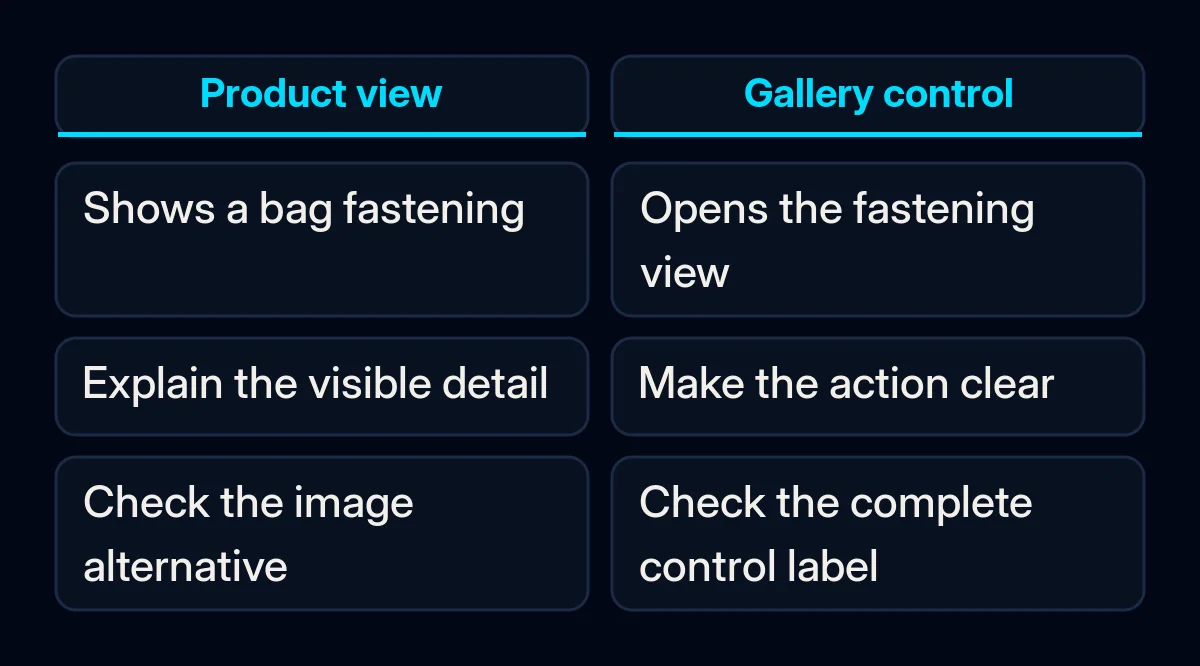
Consider a hypothetical shop selling a blue shoulder bag. These are invented wording examples, not descriptions verified against a real catalogue.
| Placement | Decision to review |
|---|---|
| Front view | Describe the relevant visible appearance, such as a blue bag with a curved flap. |
| Fastening close-up | Describe the visible fastening detail that this view adds. |
| Different colour | Match the description to the photograph and selected variant. |
| Image-only gallery control | Make the control’s action understandable, such as opening the fastening view. |
| Purely decorative repeat | Consider an intentionally empty alternative after checking information and function. |
An empty alternative means an intentional alt="" attribute. W3C’s decorative-images guidance distinguishes that from omitting the attribute. For a product-card image inside a link, adequate text within that same link can make an empty alternative appropriate. A separate product title nearby does not automatically give an image-only link its name.
Keep detailed sizing or assembly information available as accessible page content. W3C’s complex-images guidance calls for a fuller text explanation when a short alternative cannot convey the information. Avoid squeezing a diagram’s instructions into a short description and discarding the rest.
Write and save a reviewed sample
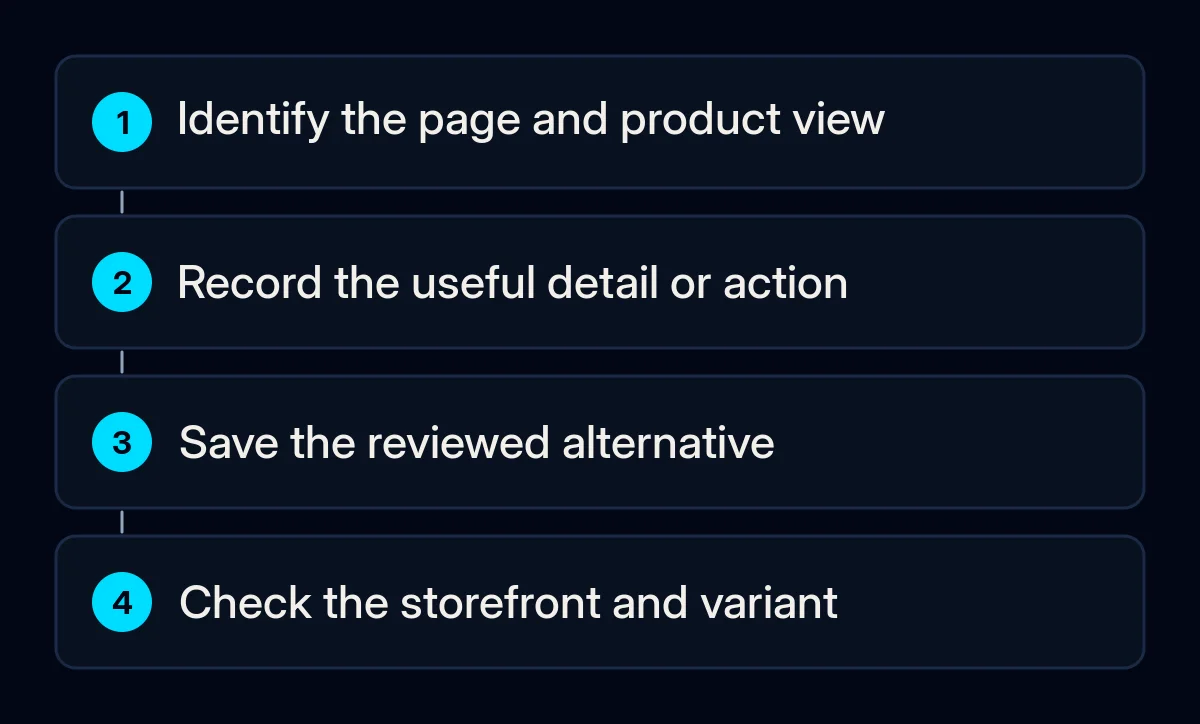
Prepare a sample you can check before applying the method across the catalogue. We would use a record with the page URL, language, selected variant, image reference, purpose, proposed wording and verification result. A thumbnail or clear media reference helps the reviewer match the row to the actual picture instead of guessing from a filename.
- Record the image’s contribution. Write what the shopper needs from this view and what nearby text already provides. Include whether the image is part of a link or button.
- Draft a brief alternative. Keep the distinguishing visible detail. Check colour and other relevant facts against the correct photograph and catalogue record; do not invent material, capacity or certification from appearance.
- Review suggestions before accepting them. A generated description is a draft. Ask the product editor to check what it says and the purpose it serves, including the selected variant and language.
- Check unexplained existing values. If the field contains stock codes or unusual formatting, ask the maintainer whether custom gallery logic depends on it. Test changes in an authorised preview or another reversible sample before replacing those values in bulk.
- Save through the relevant media field. Shopify’s current desktop help directs you to Products, the product, then its media item. Choose Add alt text, enter the reviewed wording and select Save alt text. This route covers product media; pictures inside descriptions or theme sections may use another editing location.
- Pass implementation problems to the maintainer. If the field or control cannot express the required purpose, provide the page, image reference and intended result. In our proposed ecommerce website work, this handover separates the content decision from the theme change and its verification.
Check the storefront before changing the catalogue
Open the relevant storefront page after saving and check the exact placement you edited. Confirm the image’s alternative, the accessible name of any control it belongs to, and what happens when you change a variant or gallery view. If you cannot inspect these yourself, ask the maintainer to show the output against your record before expanding the edit.
- Match the actual image. Use the browser’s inspection tools, or ask the maintainer, to read the rendered image’s
altattribute. Compare it with the prepared wording and the photograph currently displayed. - Check the control’s name and action. For a link or button, inspect the label exposed to assistive technology as well as the image alternative. Check that the stated action or destination matches what happens when you activate the control. An image description alone may not settle the whole control’s name.
- Change the view and variant. Open the fastening detail, select another visible colour and check the corresponding output again. If a description stays attached to the wrong picture, record that exact sequence for the maintainer.
- Reopen the page and relevant language. Check that the saved change is still present in the intended placement. Record unresolved cases separately, including where an import or translation workflow needs investigation.
A browser inspection checks implementation; a skilled screen-reader review can examine the shopping task with that assistive technology. Keep the scope of each review clear. W3C’s Easy Checks cautions that preliminary checks are not definitive, so neither a populated field nor this sample establishes the accessibility of the entire shop. Our first accessibility checks for your website cover broader tasks such as keyboard use and forms.
Keep the alternatives correct after the edit
Assign responsibility for the source text and repeat the relevant check when the photograph, variant, language, theme or import changes. If several systems supply the catalogue, find which one owns the field. We would include that mapping in a catalogue and CRM integration workflow before expanding manual edits that another process might replace.
Track reviewed placements, wording confirmed on the storefront and unresolved cases. These records show the work completed and what still needs attention. They do not measure a sales effect. Leave the image reference, current wording, editor and next review trigger together so another person can maintain the same decision.
Where we come in
We would start with a product’s views and agree what each needs to communicate. The handover then connects the editor’s wording to the saving location, the storefront output and any unresolved control behaviour. Start your own record with a product whose gallery shows distinct details, and check the sample before extending it.