A rising app uninstall rate needs a check of the report definition before you choose a fix. Compare equivalent groups of users or devices over a comparable period, then test the affected version’s first useful task. Removal, device inactivity and failure to return are different observations. Use the chart to choose an investigation. People’s reasons require separate, voluntary feedback.
We start with the exact label on the concerning chart. If the loss count rose after a larger campaign, check whether the installed audience grew with it. If bookings failed after an update, investigate that version and task. Save the current view before changing the product or its marketing.
What does your app uninstall rate actually count?
Read the definition beside the metric and record whether it counts people, devices or events. If you calculate a rate yourself, write down what you divide by what and the observation window. Deletion events divided by new downloads are not automatically a measure of how many of those new customers left.
The platform and report matter:
| Signal | What the documentation describes | Limit to keep with the number |
|---|---|---|
| Google Play Statistics: User loss | People who removed the app from all their devices, or whose relevant devices became inactive for over thirty days | The inactivity period is based on device use; it is not an app last-open window |
| Apple Analytics: Deletions | Deletion events on supported devices and operating systems | Only people who agreed to share usage data contribute; resetting or erasing a device is excluded |
| Apple Analytics: Retention | Opening the app on a given day after installation | Only installers who have ever opened qualify; privacy limits can leave cells blank |
Google’s separate Android vitals help defines its User loss rate differently from the Statistics User loss count. Keep the actual report name and tooltip with any export; do not substitute a definition from a similarly named chart.
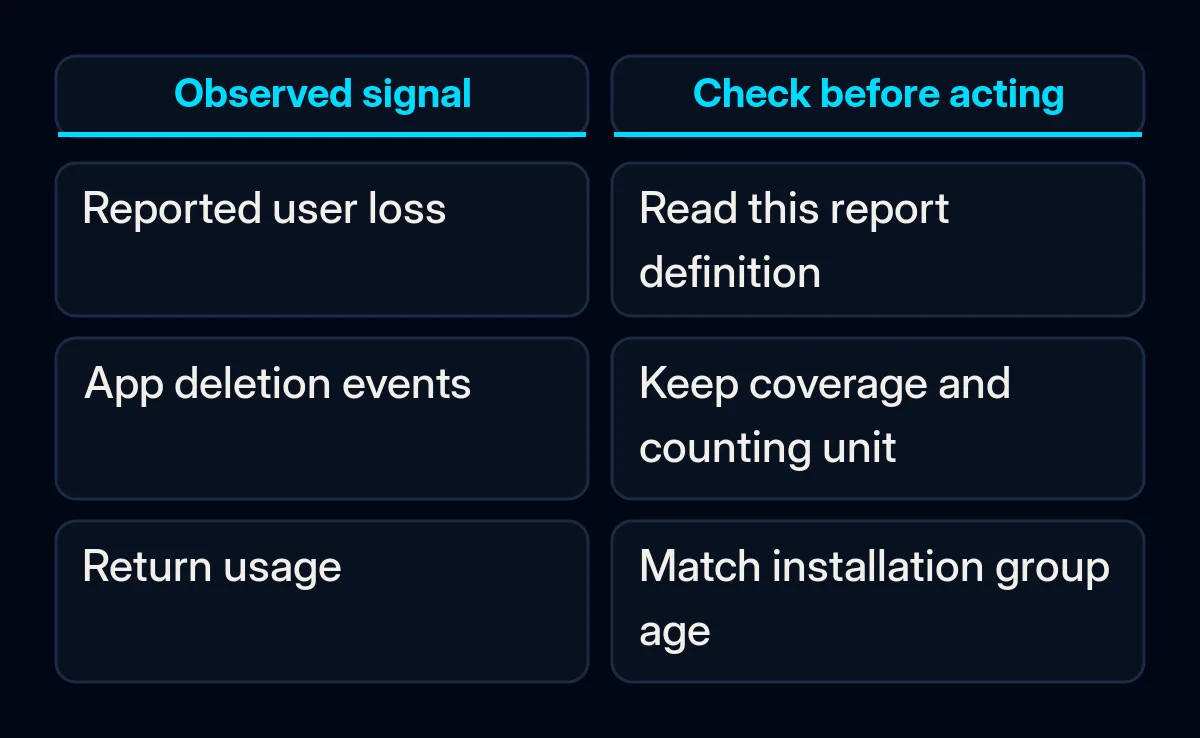
Apple’s retention rows group devices by installation day, often called a cohort. Compare groups at the same age after installation. Installers who never open the app are excluded from both sides of that retention calculation. A delayed first opening can change the group’s denominator, the number used as the base for its percentage.
That table alone cannot measure the gap between installation and first opening.
Leave subscription cancellation in its own investigation. Keep blank or unavailable data marked unknown, with the coverage limitation beside it.
Where did the change start?
Use the reports you already have permission to read. Save the report as it is, find a group you can compare fairly and look for another observation that helps you choose what to check. Treat the timing of a changed release, campaign or device mix as a lead and investigate it before assigning a cause.
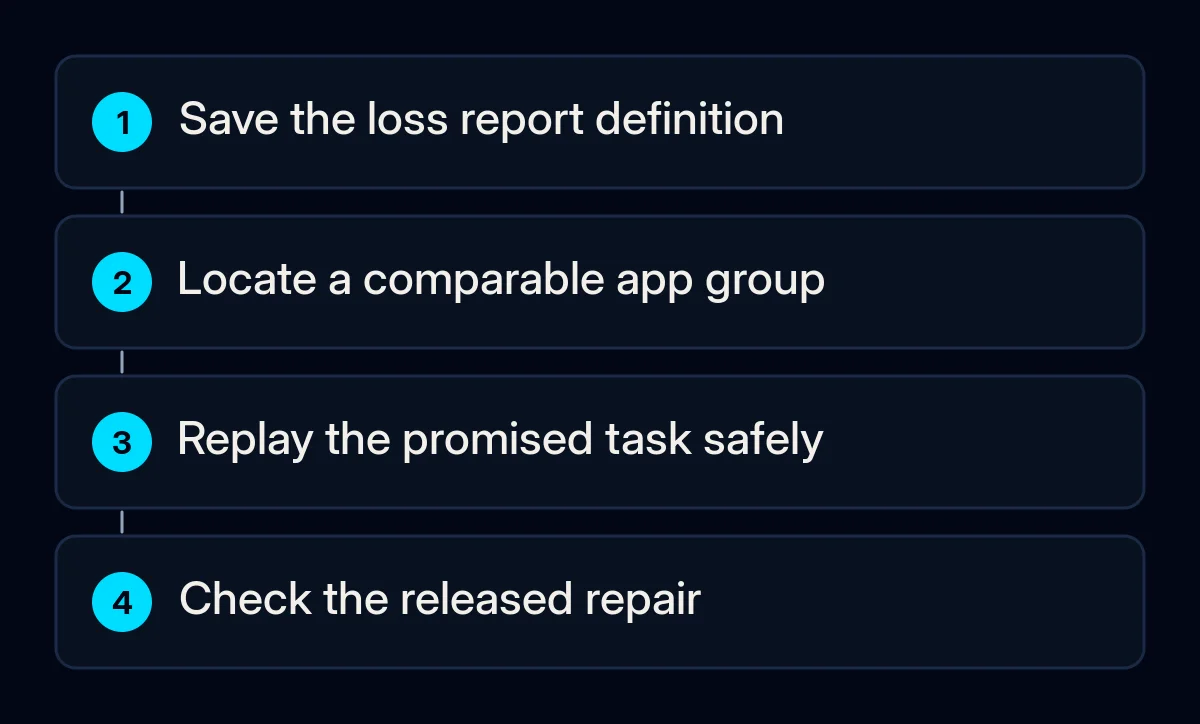
- Save the definition and dates. Record the app, platform, exact metric, counting unit, filters and time basis. Google’s installation statistics use Pacific Time. Check the time basis of the reports you compare rather than assuming they align.
- Open the relevant report. In Google Play Console, select the app and open Statistics, then inspect the chosen metric’s definition. Apple’s documented route is Apps, your app, Analytics, Metrics; use Retention for its installation-day groups. These are documentation-based routes, and your available controls depend on access and metric.
- Keep the comparison consistent. Where supported, inspect the app version, operating system, device or region. Compare complete periods and equally old installation groups. Record any change in the share of people who agreed to share usage data, or missing privacy-limited data, instead of treating the visible sample as everyone.
- Look for a technical lead. Android vitals reports user-perceived crashes and apps that stop responding, called ANRs. Apple provides crash data with usage metrics. Check the affected release and device if that report lets you filter by them. Treat a crash as a lead for a repair investigation; the deletion motive remains a separate question.
- Choose a task to replay. Write what the app promises a new user can actually finish: for example, a booking confirmation. Check existing, authorised task records if you have them. If those records are missing, keep that gap explicit and start with a manual walkthrough.
If the report definition is inconsistent or you cannot form a comparable group, ask the analytics owner to resolve that before presenting a rate as evidence for a redesign.
How do you choose what to fix?
Choose a change around a failure you can reproduce or a mismatch you can show. Record the screen or handoff where the failure occurs. If the walkthrough succeeds, keep the deletion motive marked unknown: the people represented in an aggregate report may have different needs and experiences.
- Prepare a safe starting state. Use an approved test account and test data on the affected released version. Record device, language, account state and permissions. Keep real orders, payments and customer details out of the test.
- Try the promised outcome. Follow the store listing’s promise through to a result the receiving system can confirm. A success message needs a matching saved result. For unclear navigation, our guide to finding where users lose an app task covers that narrower check.
- Check permission choices. Apple’s onboarding guidance supports postponing nonessential setup. Android’s permission guidance recommends contextual requests and keeping unaffected functions usable after denial. Test allowed and denied optional access while preserving permissions or checks genuinely needed for the feature to work.
- Follow any web transition. If the task opens a website for booking or account recovery, test that page in the same language and account state. In our website and application handoff work, the check covers the link opening, the destination and the saved result.
- Assign the observed break. Record expected behaviour, actual behaviour, reproduction conditions and an owner. This is the starting point for mobile app audit and maintenance. If the task works, compare the store promise with the actual experience and seek voluntary feedback; the reason may remain unknown.
Keep necessary login, security and business checks. Fix or postpone optional friction only where the responsible product team approves the change. More notifications or a larger acquisition budget do not follow automatically from the loss chart.
How can you check the released fix?
Repeat the same task after the intended version is available to the affected group. Confirm the saved result, optional-permission branches and any web transition. If the change breaks a working path, follow the release owner’s rollback procedure and retain the reproduction note for the maintainer.
Then review the same defined loss measure and task outcome under comparable conditions. Keep these observations separate:
- Task completion: can the released version now produce the expected saved result?
- Technical quality: what do the relevant crash, error or unresponsive-app records show for that version and device?
- Return usage: do equally old installation groups open the app on the same chosen day after installation, within the available sample?
- Removal or loss: what changed in the original report, with its counting unit and coverage intact?
Record other changes, including acquisition mix, before attributing a difference to the fix. Wait until the chosen observation window is complete. When the sample is too small or private, keep the answer unknown and ask the analytics owner to review a larger combined group where privacy rules allow. A completed task confirms that path under the tested conditions. Evaluate a change in uninstalls separately, using the original defined measure.
Where we come in
We start with the report definition and the affected release, then put the reproducible task and its saved result in the same repair record. That gives the product team a specific investigation and a way to check the released change. Bring the exact report label and the task that fails; leave customer identifiers out of the handoff.