Android developer verification should not stop customers installing a fully registered app where these checks apply. Registration links its Android identifier, called a package name, and relevant signing keys to a verified developer. Google announced on 19 November that global expansion begins in January 2027, in stages, on Android devices Google classifies as certified. Confirm both the app record and the account’s verified identity.
For a business owner, the useful result is a dated record for the app customers actually receive. We start with its owner, technical identity and distribution route. You can gather those facts before asking the maintainer, the person responsible for the published build, to change anything.
What changes with Android developer verification?
Google’s announcement describes a gradual expansion across countries and installation sources over several months. January 2027 is the start of that expansion with participating distributors. Google’s separate distributor guidance says the protections will be in effect for other stores by March 2027. Neither statement supplies an exact activation day for a customer device in Slovenia.
The earlier phase began on 30 September 2026 for participating stores in Brazil, Indonesia, Singapore and Thailand. Google’s FAQ says the requirements apply to certified devices running Android 8 or higher. Include that device, region and channel scope in any explanation you give your team.
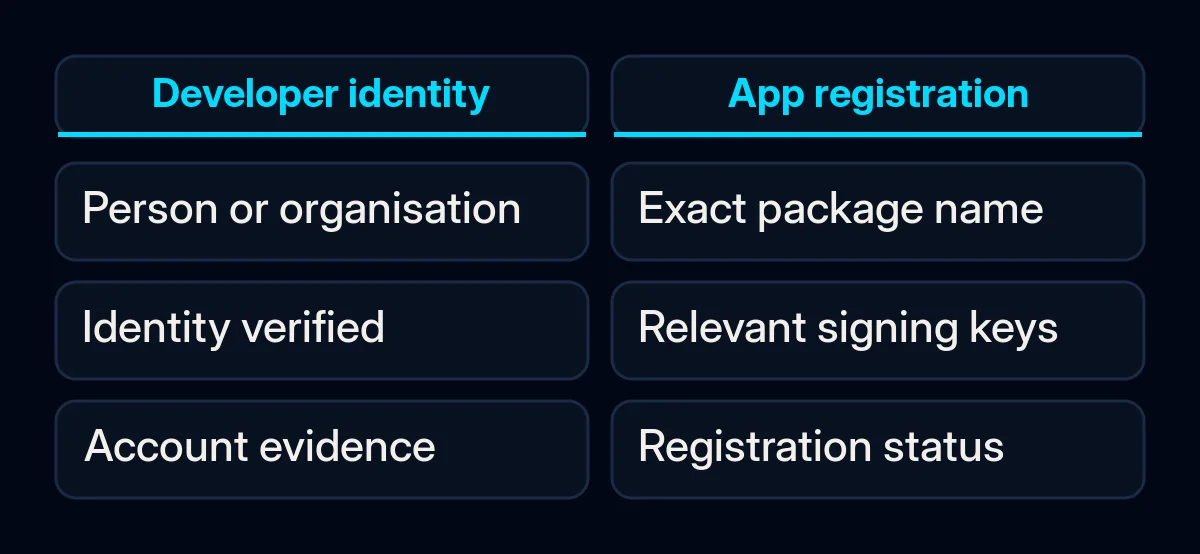
Inside the developer account, distinguish identity verification from app registration. Identity verification establishes who the developer is; app registration connects a particular package and signing evidence to that identity.
Registration addresses the installation check described here. Store review, app safety and device compatibility still need their own checks.
Which console should we use?
Use the console that matches your distribution. Google’s Play guide says Play developers must manage their Play packages in Play Console. That console can also register apps they distribute outside Play. Google’s separate Android Developer Console guide covers developers distributing exclusively outside Google Play.
| Your distribution | Where to check |
|---|---|
| Google Play, including additional routes outside Play | Existing Play Console |
| Exclusively outside Google Play | Android Developer Console |
For most already verified Play developers, Google’s guide says no new identity action is required, but check the app’s own registration status. Eligible apps may be registered automatically. Confirm the package registration status and that the signing keys used by every released build are registered.
If the company cannot access the account, ask its authorised owner or release maintainer to perform the check. Record that ownership gap before opening another account or changing the released app.
What should we check in our existing account?
Check the released app’s exact package name, its signing certificates and the registration status shown in the console. Google’s FAQ documents the Android developer verification page in Play Console and the Package names tab in Android Developer Console. These are the documented locations; what you can see depends on your account and access.
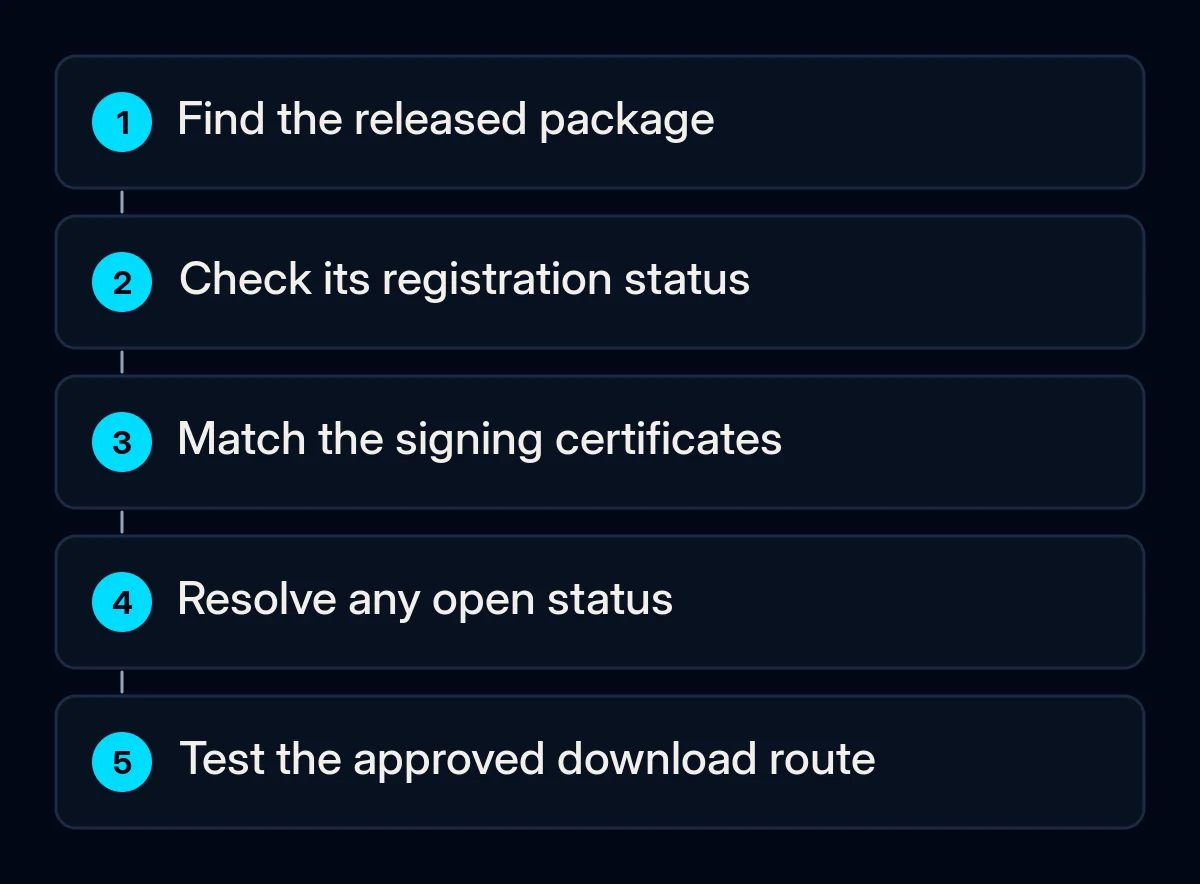
- Identify the released package. Ask the maintainer for its package name, the technical identifier of the Android app. The name beneath the icon is only a visual reference. Give each released variant with a different package its own entry.
- List the customer routes and signing certificates. Record Play, website downloads and any other actual store. Ask which signing certificates apply to the builds delivered through each route. Have the maintainer match each released build’s signing certificate to the registration record. Its fingerprint identifies the certificate without exposing the private key.
- Read both statuses. Record the developer identity and the exact package registration side by side. Save the status and date in a protected work record. Draft, Not registered or In review leaves work open; record the exact documented status.
- Assign unresolved registration work. Google’s outside-Play guide describes adding the certificate fingerprint. For an existing package, the maintainer proves ownership by signing a special APK, an Android installation file, with the existing private key. They then follow the console’s upload instructions. Private keys stay under their owner’s control and out of email and shared chats.
- Escalate a missing or disputed key. Ask the existing owner and maintainer to resolve the evidence or use official support. Google’s FAQ warns that a lost signing key prevents package registration. Do not promise that a support request will restore it.
In our mobile app maintenance and development, we use that owner, package and release record to define the work. It gives the maintainer a specific question instead of a general request to “fix verification”.
Can customers still download from our website?
Google continues to describe distribution outside Play, including direct website downloads. Its global plan extends the verification protections across installation sources on certified devices. A direct APK link therefore needs the same package and signing check; moving a link away from Play does not establish readiness.
For websites supporting an app, we also check that the download button points to the intended released route. The link check and the console’s registration record are two pieces of evidence.
Google provides a special on-device setup, called advanced flow, for experienced users choosing to accept the risks of unregistered apps. We would keep customers’ normal security setup intact and resolve unfinished business app registration on the developer’s side.
Google’s enterprise exception is narrower than “an app used at work”: the FAQ specifies distribution through the organisation’s store on managed devices. Both conditions matter. A customer using a personal phone or another download route needs a separate assessment.
How do we know the work is complete?
Save a dated confirmation that the released package and relevant signing keys are registered under the correct verified developer. Record each actual distribution route and any remaining warning. Then test the released download route on a device and account your company is allowed to use. Save the device, region, version and actual outcome.
Use a company test device or another device whose owner has agreed to the test. Avoid real customer data, payments or orders. If installation fails, save the exact message and give it to the maintainer; a failure alone does not identify verification as the cause.
A successful installation today confirms that path under those conditions. It cannot prove that every future rollout stage is covered. Recheck registration when a package, signing key or distribution route changes.
If the installation works and people leave later, investigate that separate symptom with our guide to checking a rising app uninstall rate.
For the handoff, provide the exact package, relevant certificates, routes, dated status and the unresolved item with its owner. Leave credentials, private signing keys and identity documents out.