
If you suspect an AI Overview traffic drop, start with the page and search term that lost clicks. Compare them in Google Search Console across similar periods, then look at the search results your customers might see today. An AI Overview, the summary Google generates in some search results, is a clue. Search Console cannot tell you how many clicks that summary cost you.
What can explain an AI Overview traffic drop?
Start by separating how often people saw a link to your site from how often they clicked it. Search Console calls the first measure impressions. Click-through rate, or CTR, is clicks divided by impressions. The same fall in clicks can come from fewer impressions or fewer clicks from roughly the same number of impressions.
Fewer chances to appear. If impressions fell, check where they fell and when. Google’s guide to debugging traffic drops suggests checking seasonal demand and recent changes to the site. A page that lost its place in results calls for a different check from a search that fewer people are making.
Fewer clicks from the same exposure. With broadly steady impressions and lower CTR, look at the title and description Google displays and at the rest of the results. Google’s counting guide explains that links within one AI Overview share the position of the block. Average position summarises the positions Google records across appearances. A steady number leaves room for the search results page itself to have changed.
Google’s help page for the Generative AI performance report (Search) says it counts impressions across supported features, including AI Overviews and AI Mode. You can compare by page, country, device and date. The ordinary Search results report already includes this visibility in Web data. Read the two reports side by side and keep each measure in its own column.
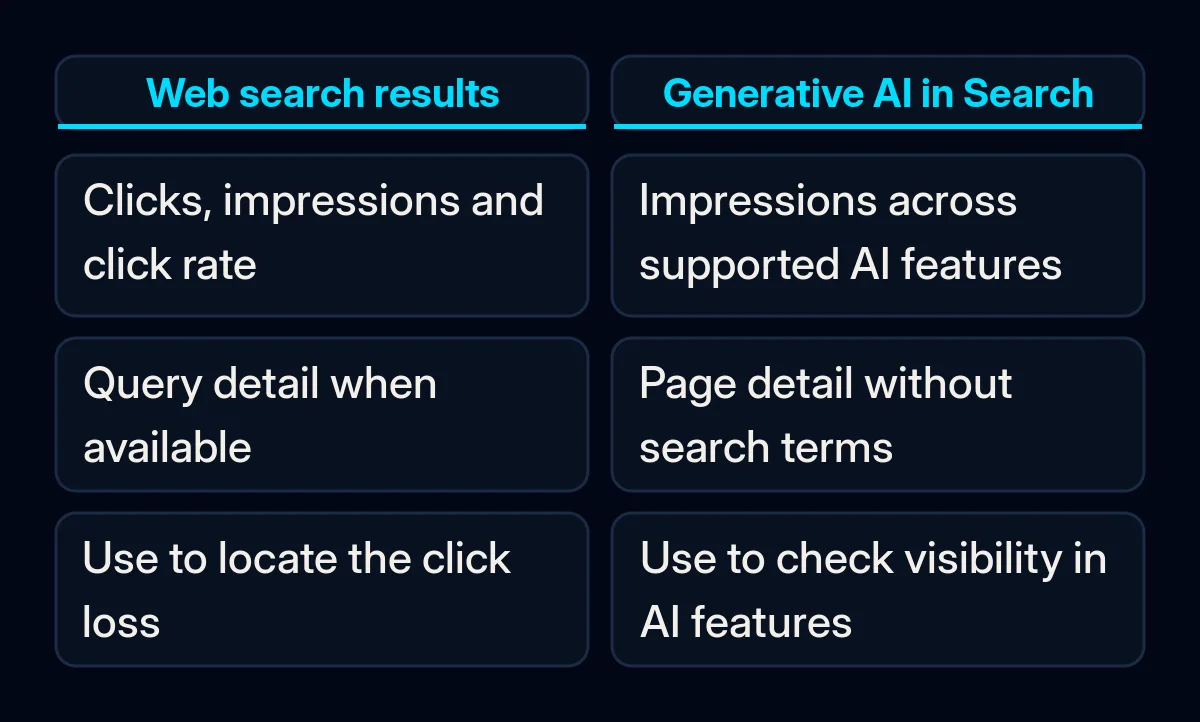
Compare the search clicks you actually lost
Pick a page with a noticeable loss in clicks and narrow the comparison until you can describe who was searching for what. Use completed periods of equal length with comparable weekdays. Google’s Search Console help says the newest dotted points can still change, so leave those days out of both periods.
- Find the page. Open Performance, then Search results. Choose Web: text-based where that option appears. Use the date filter to compare the two periods, then open Pages and find a page that accounts for a meaningful share of the lost clicks. Choose by the number of clicks lost so that a small row with a dramatic percentage change does not set the agenda.
- Hold the other filters steady. Select the page and look at Queries for a phrase contributing to the loss. Add that query and keep the same country and device across the two dates. Google’s filtering guide notes that some queries can disappear under filters. If the comparison gets too thin, use longer comparable periods or keep the page filter and label your notes as page-level.
- Save one row. Record the page URL, query if available, country, device, search type and dates. Enter before and after values for clicks, impressions, CTR and average position. Leave room for what you see in today’s search results, any confirmed site change and a date to check again. This baseline is where we start an SEO audit.
For a copyable note, use the same fields each time.
- Filters. URL, search term, country, device and search type.
- Before and after. Dates, clicks, impressions, CTR and average position for each period.
- Follow-up. What appears today, any confirmed site change, the next check and its date.
Suppose a shop’s guide to choosing curtain lining lost mobile clicks for one search in the UK. Its impressions and average position are roughly steady in the matched comparison, and the CTR is lower. That gives the owner a concrete place to look. Open that query on a phone in the relevant market if possible and note what appears around the shop’s result.
What should you check next?
Use the pattern in your saved row to choose the next check. A drop concentrated on recently moved pages sends you to the site change first. A drop in CTR while impressions and position broadly hold sends you to the current search results.
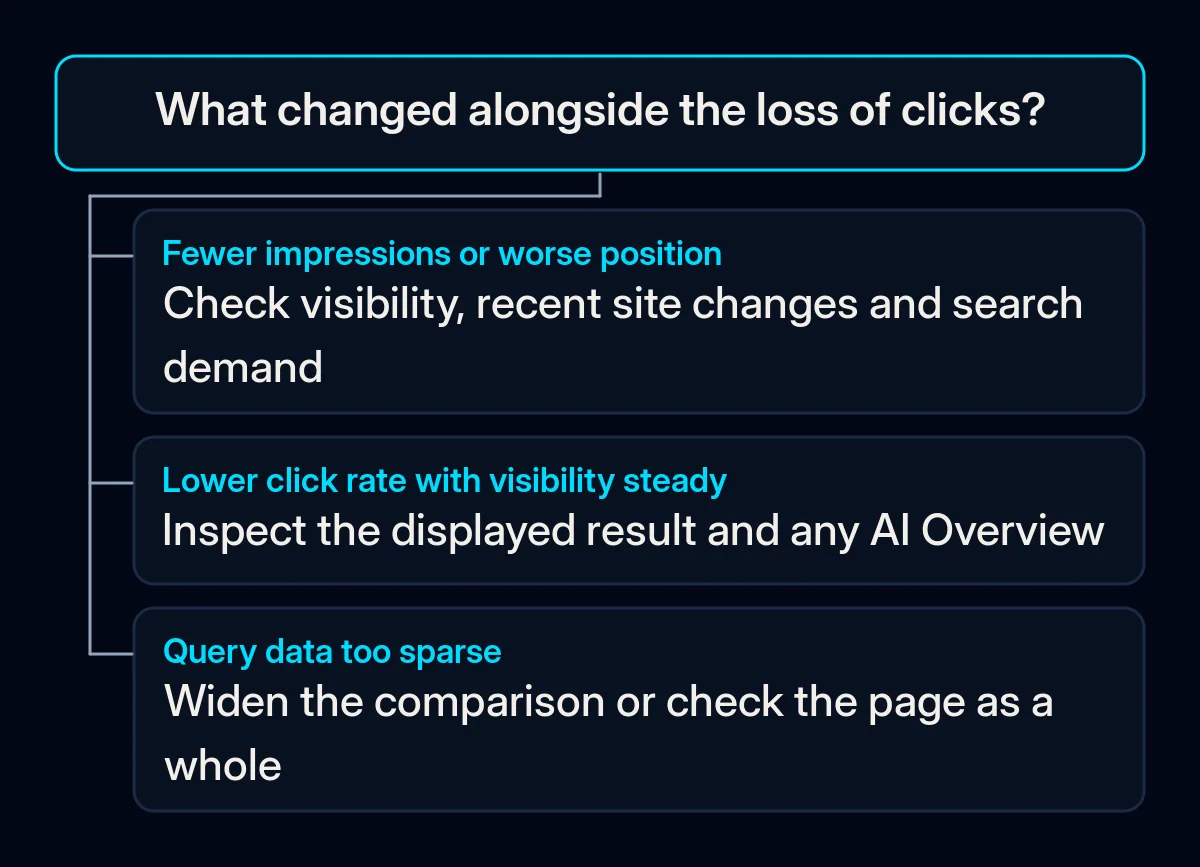
- Impressions fell or position slipped. See whether the loss is limited to one page or shared by similar pages and queries. If it starts around a site change, open the old address and note where it redirects. Then inspect the intended page’s indexed data in Search Console. Check whether Google indexed it and which address Google chose as the main version, known as the canonical URL. Those are website migration checks. For a shop that just moved, use our guide to checking redirects after a shop migration to map the old and new addresses. If impressions fell with broadly steady position, check whether demand changed, for example with the same search term and country in Google Trends when it has enough data.
- CTR fell while impressions and position broadly held. Write down the exact query, date, country and device of your spot check. Look at your displayed title and description, the other results and any AI Overview. In the curtain example, the summary might answer which lining blocks light while the shop’s guide has a useful fabric comparison that the visible title leaves out. A search today shows the results page you saw today. Google says results can vary with time, location, device and search history.
- Check AI visibility if you have the report. Use the same page, country, device, completed dates and corresponding search type where available. Save those impressions separately, since the report has no query dimension. A rise alongside falling Web clicks is worth recording. Those observations alone cannot identify a lost click or assign the drop to AI Overviews.
Save the comparison and set a recheck date
Write one sentence that names the change you can see and the check you will make next. If you found a clear mismatch between what the title promises and what the page actually offers, test one edit and log its date. If you only saw an AI Overview today, keep the first row and repeat the comparison when another similar period is complete.
At the recheck, bring back the same URL, query if available, market and device. Look at absolute clicks alongside impressions and CTR. Save the new observation beside the old one so that a later change in the results page or the numbers has a dated reference.
Where we come in
We start with the pages that lost clicks and rebuild the comparison with the same filters on both sides. We use that record to choose a check of search demand, the result people see or the page itself. If a change is worth trying, we keep the original comparison so there is a clear place to start the next review.