Business not showing on Google Maps? Start with one search: your business name and your city, typed into Google Maps. If nothing comes up, the profile itself is usually hidden because it is not verified yet, it is suspended, or Google treats it as a duplicate. If it comes up by name but not when you search for your service, the profile exists and other places rank above it.
A customer may say they looked for you on the map and found a competitor, or you may search for your trade from your own shop and see other names. Google Business Profile is the listing that puts a business on Maps and in local results, the map and list of nearby places Google shows for searches like “bike repair near me”. It has its own rules, and each cause leaves a different trace.
Why is my business not showing on Google Maps?
There are two main reasons for a business not showing on Google Maps. Either Google is not showing the profile to anyone, or it shows the profile but ranks it below other places for that search. The first comes from verification and Google’s rules; the second comes from ranking. Each needs its own fix. A recent edit adds a milder case: the profile shows, but with old details.
The profile is not verified. Verification is how Google confirms that the business is at its address and that you’re authorized to represent it, by phone, email, video or postcard. Google’s help says: “Only verified businesses can show their business info on Maps and Search.” Until the check is finished, the profile can exist in your account and stay invisible to customers.
The profile is suspended or disabled. Google says a profile that breaks its guidelines “becomes disabled or suspended and won’t show to other users on Google”. Google’s guidelines for representing a business give examples of what breaks the rules. Among them are a name with extra words that are not on your storefront, a P.O. box as the address, or a virtual office where nobody works.
Google sees it as a duplicate. Google allows only one Business Profile for each business, and says: “If a profile is considered a duplicate, it won’t show on Google Search or Maps.” Its help lists typical situations, such as a second profile for a business that already has a verified one, or separate profiles for different services of the same business.
A recent edit is still under review. Edits “usually take up to 10 minutes to review, but sometimes it can take up to 30 days”, according to Google’s help on profile edits. Google also says changes can take up to 3 days to appear in search. While an edit is Pending, customers still see the old details.
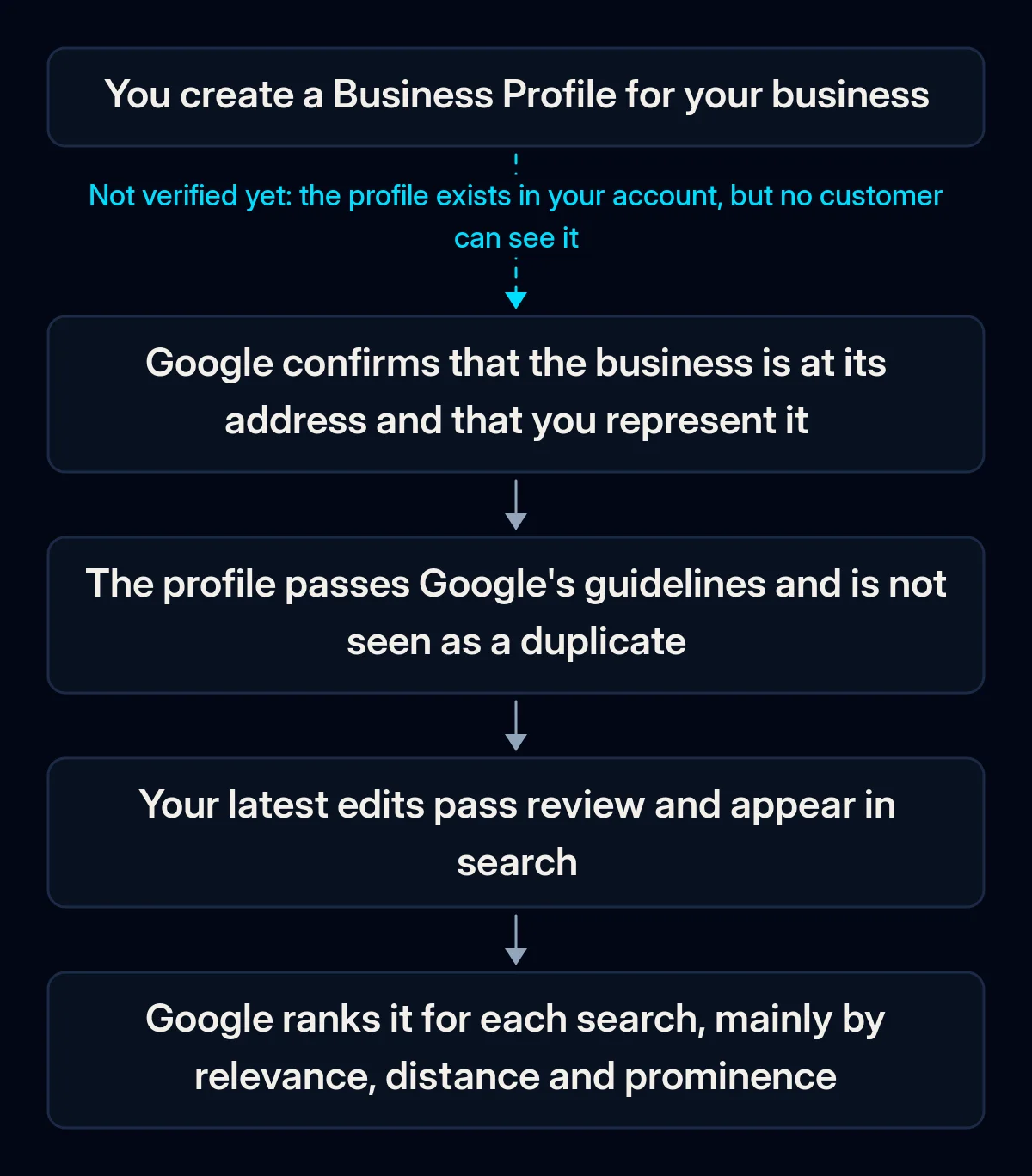
The profile shows, but ranks below others. Google says local results are mainly based on relevance, distance and prominence. Relevance is how well the profile matches the search, distance is how far the business is from the person searching, and prominence is how well-known the business is. Distance depends on the customer’s location, so a search from your own shop is a poor test.
The same help page adds that “There’s no way to request or pay for a better local ranking on Google.” The table below sums up each cause, what you see and where to start.
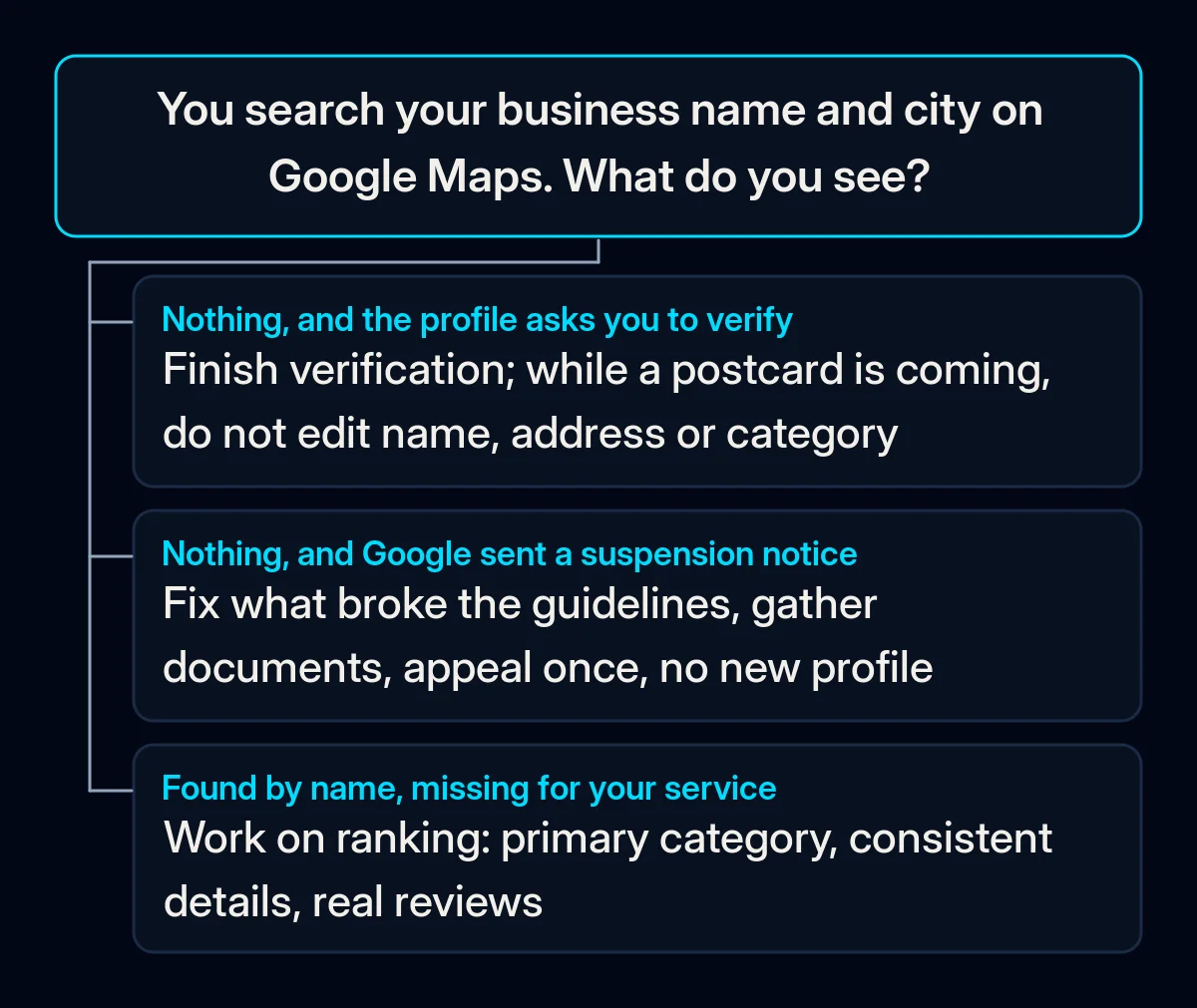
| Cause | What you see | Where to start |
|---|---|---|
| Not verified | The profile asks you to verify | Finish verification |
| Suspended or disabled | A suspension notification in your Google Account | Fix the cause, then appeal |
| Duplicate | A second profile for the same place | Remove or merge it |
| Edit under review | Old details, an edit marked Pending | Wait, change nothing else |
| Ranking | Found by name, missing for your service | Category, details, real reviews |
If the problem is with your website, the checks are different, and we cover them in why a site stops showing up on Google.
How to tell which cause is yours
You can identify the cause with the Google Account that manages the profile and a phone. Go through these checks in order. The first separates a hidden profile from one that is outranked, and the later checks narrow down the cause before you change anything.
- Search your business name and city. Google suggests this search, signed in, to find your own profile. Then repeat it on Google Maps in a browser window where you are signed out, so you see what a customer sees.
- Open the profile in your account and read its status. If it still asks you to verify, verification is not finished.
- Check the notifications and email of the Google Account that manages the profile. Google says a suspension notification goes to that account.
- Look at your recent edits. Google labels each one Accepted, Not approved or Pending, and says it “might not approve changes if it can’t confirm its accuracy.”
- Search for duplicates. Try your business name with your old address, an old phone number or a past spelling. A second profile for the same place points to the duplicate cause.
- Search for your trade from where your customers are. Ask someone in the area you serve to search for what you do on their phone. If they find you only by your name, the cause is ranking.
Sometimes none of these checks finds anything. In June 2025, Barry Schwartz of Search Engine Roundtable reported profiles that disappeared without any suspension notice. A volunteer Product Expert from Google’s help community wrote in a Reddit thread that it was a confirmed issue. If your checks find nothing, leave the profile as it is and repeat the checks later.
How to get your business back on Google Maps, in order
Start with the causes that hide the profile completely, then work on ranking. Ranking changes make no difference while Google is not showing the profile to anyone, so verification, suspension and duplicates come first. Each step below starts with what you can do in your own account.
- Finish verification. Use the method Google offers in your account. Google says verification reviews take up to 5 business days, and on rare occasions longer. If you chose a postcard, do not edit the business name, address or category while you wait.
- If the profile is suspended, fix the cause first. Make the name match your storefront, remove a P.O. box or virtual office address, and check the rest against Google’s guidelines. If you travel to customers and do not receive them at your address, Google treats you as a service-area business: hide or remove the address from the profile. Keep the address visible only if customers can visit the premises. An office in a co-working space is allowed only if it “maintains clear signage, receives customers at the location during business hours, and is staffed during business hours”. The newer content rules are in our note on what Google no longer allows in a Business Profile.
- Then appeal once, with documents ready. Google’s examples of evidence include official business registration and a business license, with the same name and address as the profile. Google’s appeal page says: “Appeals can only be submitted once.” Decisions can take up to 5 business days, and the decision is Google’s. Its suspension help adds: “Do not create a new Business Profile for the same business.”
- Remove or merge duplicates. If you created a duplicate profile by mistake, Google says you can remove it “without affecting your verified listing”. If the duplicate has reviews you want to keep, request a merge instead, so Google combines the two profiles into one. Google reviews every merge request, and replies to reviews may be lost.
- Wait out pending edits, and keep the details stable. Google may update your profile if it receives reports that your information is not accurate. We suggest keeping the same name, address and phone number on the profile and on your website. If you move or rename the business, change the site and the profile together. In our website projects, launch work covers the domain settings, redirects from old pages and Search Console, Google’s tool for site owners.
- Work on ranking with what you control. Google says “The categories you select affect your local ranking on Google” and asks you to pick as your primary category the one that best describes your business. Choose it carefully, add only the categories your core business needs and then leave them, because changing a category can trigger a new verification. For reviews, ask real customers: Google’s Maps content policy forbids offering payment, discounts or free goods in exchange for a review.
How do you know the fix worked?
Check the profile status first, then search. Write down what you see today, before you change anything, and check the same things again after each step. Comparing like with like tells you whether a step worked or whether you are still waiting on Google.
- The name search. Your business name and city on Google Maps, from a signed-out browser, should show the profile.
- The profile status. It should show as verified, with no suspension notification and no edits left as Pending.
- The search for your trade from your customers’ area. Repeat the same search from the same places.
- Enquiries from the profile. Note calls and messages that came from Google Maps, so you can see whether being found turns into enquiries.
Where we come in
You can run the checks above yourself: the profile belongs to the Google Account that manages it, and every fix in this guide happens there. We can help with the website your profile points to. In an SEO audit we take a measured starting point before changing anything, and we don’t promise positions, because nobody controls the search engine. If your site is also hard to find, a short brief is enough to start.